
How to clip on PC
Direct Answer: To clip PC gameplay, press Win + Alt + G (Game Bar), Alt + F10 or Alt + Z (NVIDIA), or Alt + S (SysCubes) after turning on background replay. Compare all 6 methods, setup steps, and shortcuts below.
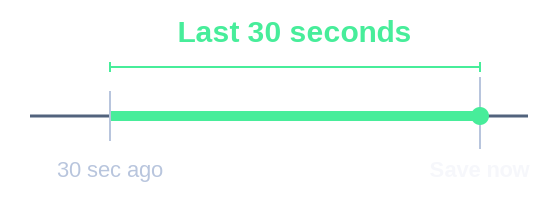
Which clipping tool should you use?
A clipping tool keeps a rolling recording in the background, so you can save the last few seconds after something happens. It must be on before the moment: no tool can save what happened while it was off.
| Tool | Works on | Turn on before playing | Save the clip |
|---|---|---|---|
| Xbox Game Bar | Windows 11 and 10, any graphics card | Record what happened in Windows capture settings | Win + Alt + G |
| NVIDIA App | PCs with an NVIDIA GeForce graphics card | Instant Replay in the NVIDIA overlay | Alt + F10 by default |
| AMD Software | PCs with an AMD Radeon graphics card | Instant Replay in the Record & Stream tab | The Save Instant Replay hotkey in AMD Software |
| OBS Studio | Any Windows PC, free download | Start Replay Buffer each session | A Save Replay key you assign |
| Steam | Games you launch from Steam | Record in background in Steam's Game Recording settings | Mark and save the clip from the Steam overlay |
| SysCubes | Windows 11 and 10 with Overwolf | Enable Replay in Screenshot & Record | Alt + S or Save Replay |
- Nothing installed yet? Start with Xbox Game Bar, part of Windows. It keeps up to 10 minutes, NVIDIA and AMD up to 20, SysCubes 5 to 40 seconds.
How to set up each clipping tool
Each option needs a one-time setup. OBS Studio and Steam steps follow the guides list.
Option 1: Xbox Game Bar
Xbox Game Bar is the capture overlay built into Windows 11 and 10.
- In Windows Settings, open Gaming, then Captures. Turn on Record what happened and choose how much to keep under Record the last.
- Play your game. After the moment, press Win + Alt + G to save it.
- Find the video in
Videos/Captures, or press Win + G and open the capture gallery.
Game Bar records a game or app window, not the whole desktop. If background recording was off, the shortcut cannot recover the earlier moment.
Option 2: NVIDIA App
The NVIDIA App is NVIDIA's free companion app for GeForce graphics cards.
- Install the NVIDIA App from NVIDIA's website if it is not on your PC. In a game, press Alt + Z to open its overlay.
- Turn on Instant Replay and set how much to keep in its settings.
- After the moment, press Alt + F10 to save it.
Works only with an NVIDIA GeForce graphics card. If a shortcut does nothing, check the current keys in the overlay's settings.
Option 3: AMD Software
AMD Software: Adrenalin Edition comes with AMD Radeon graphics drivers.
- Open AMD Software and go to the Record & Stream tab.
- Turn on Instant Replay and set its length.
- Check the Save Instant Replay key under Hotkeys, then press it after the moment.
Works only with an AMD Radeon graphics card and AMD Software installed.
Option 4: SysCubes Recommended

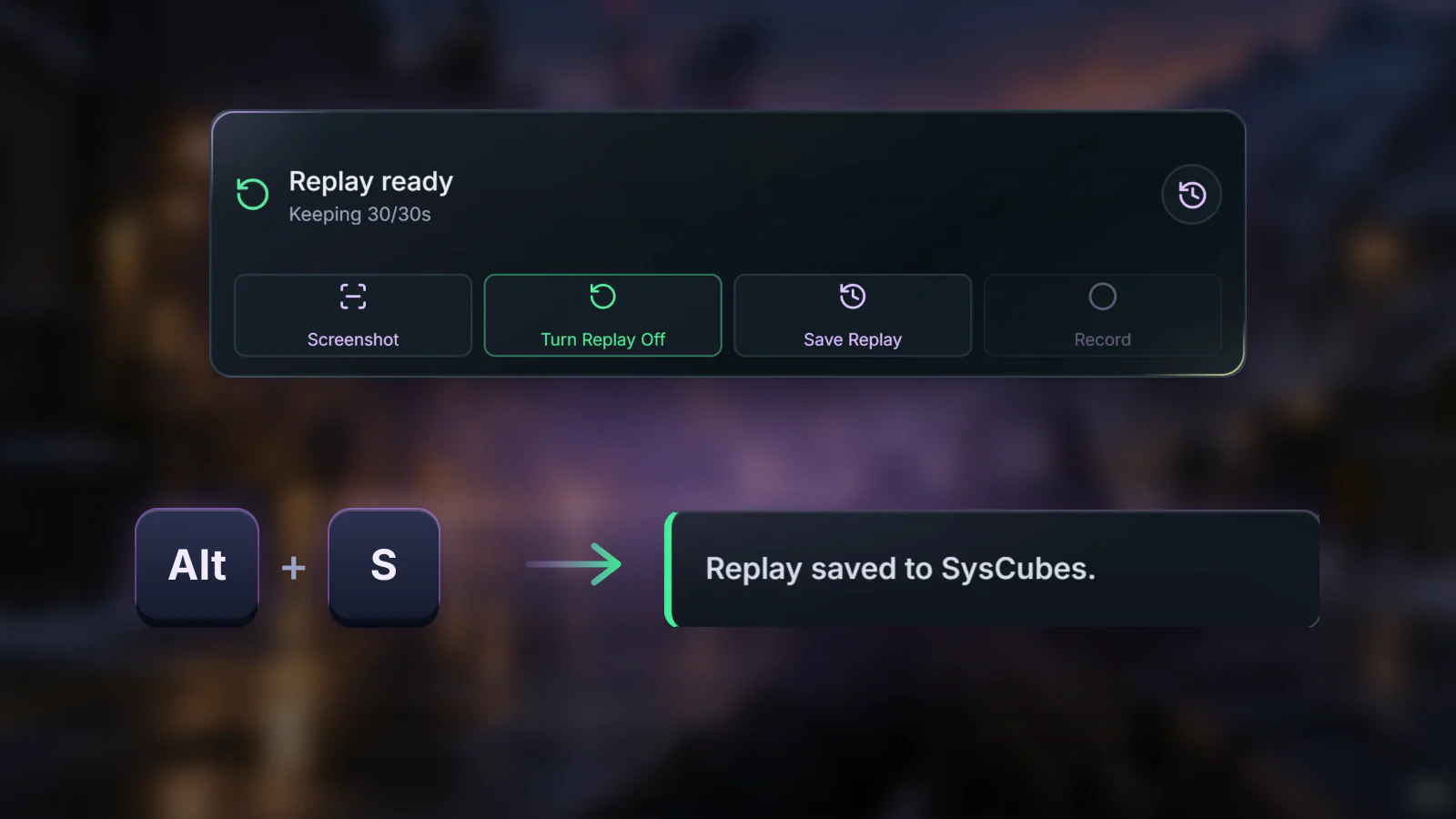
SysCubes is a free Windows app for Overwolf with a visible replay control, so you can see when a clip is ready to save. It keeps 30 seconds by default, adjustable from 5 to 40 seconds.
Before playing Turn on Replay before you play. From then on, the last 30 seconds are always ready to save.
- Install SysCubes. Open Screenshot & Record and select Enable Replay before playing.
- After the moment, press Alt + S or select Save Replay.
See when replay is ready
Clip a specific game or situation
These guides cover the settings and quirks of one game or one situation.
- Clip the last 30 seconds on PCThe quickest setup when you only want the moment that just happened.
- Clip the last minute on PCWhen 30 seconds is too short for the whole round or teamfight.
- Clip VALORANT on PCSave a live round, or record a moment from a match replay before it expires.
- Clip Fortnite on PCSave eliminations and turn a Fortnite replay into a video.
- Clip CS2 on PCSave clutches and aces in Counter-Strike 2.
- Clip Call of Duty and Warzone on PCKeep squad wipes and long-range shots.
- Clip Rocket League on PCKeep the pass, aerial and goal in one video.
- Record game and Discord audio on separate tracksInclude your friends' voices and your microphone, each on its own track.
- Clip games on a low-end PCFind settings that keep your game playable while recording.
How to clip with OBS Studio's Replay Buffer
OBS Studio is free, open-source recording and streaming software that you download from obsproject.com. Its Replay Buffer keeps recent footage in memory, but it does not start on its own.
- Add a Game Capture source for your game. In Settings, open Output, turn on Replay Buffer and set Maximum Replay Time.
- In Settings, open Hotkeys and assign a key to Save Replay.
- Before you play, select Start Replay Buffer in the main window. After the moment, press your Save Replay key.
More setup than the other options, and the buffer must be started every session. A longer buffer uses more memory. To see how OBS's Replay Buffer compares with a replay widget, read OBS for game clipping compared.
Clip didn't save? Check these four causes
- Recording was off. Background recording or replay has to be running before the moment. Turn it on, then wait for the buffer to fill before saving.
- The game blocks capture in exclusive fullscreen. Switch the game to Borderless Windowed or Borderless Fullscreen and try again.
- Two shortcuts collide. Another app may use the same key. Check the key in the tool's own settings and change one of them.
- The clip has no voice. Most tools record game sound by default, but the microphone is a separate setting that is often off.
- Using SysCubes? Follow SysCubes recording troubleshooting for Replay, picture and sound checks.
How to clip with Steam Game Recording
Steam Game Recording is built into the Steam client and works with games you launch from Steam. It can record in the background and let you cut a clip from the recording afterward.
- In Steam, open Settings, then Game Recording, and choose Record in background.
- After the moment, press Shift + Tab to open the Steam overlay, open the recording, mark the part you want and save it as a clip.
Steam's shortcuts for markers and clips are listed in the same Game Recording settings, and they can differ between Steam versions.
Replay buffer or full recording: which do you need?
A replay buffer keeps only the most recent seconds or minutes and throws older footage away, so you save a clip after something happens. A full recording keeps everything from the moment you press record until you stop, which suits a whole match or a tutorial but creates large files.
Most tools on this page can do both. In SysCubes you pick one mode at a time: Replay for surprise moments, or a manual recording for a whole match.
More questions about clipping on PC
Can I clip something that happened before I turned recording on?
No. Clipping tools save a rolling recording that was already running. Turning recording on afterward cannot recreate a moment that was never recorded.
What is the keyboard shortcut to clip on PC?
It depends on the tool: Win + Alt + G for Xbox Game Bar, Alt + F10 for NVIDIA Instant Replay by default and Alt + S for SysCubes Replay by default. AMD Software, OBS Studio and Steam use the keys set in their own settings.
How do I clip the last 30 seconds on PC?
Turn on background recording in a clipping tool and set it to keep 30 seconds, play for at least that long, then press the tool's save key right after the moment. In Xbox Game Bar that is Win + Alt + G once Record what happened is on.
Does clipping lower my FPS?
Any background recording uses some graphics card or processor time. Tools that use the graphics card's built-in video encoder usually cost less than software encoding. To know the cost on your PC, compare the same game scene with recording on and off.
Where are my clips saved?
Each tool uses its own folder. Xbox Game Bar saves to Videos/Captures, and the other apps show their save folder in their capture or recording settings.
Sources and verification
Reviewed November 8, 2026. Windows steps follow Microsoft's documentation, other tools follow their makers' documentation, and SysCubes details come from product documentation. Default shortcuts can change between app versions.