
How to Clip Call of Duty & Warzone on PC
Save a squad wipe, Gulag win or long-range shot from Call of Duty or Warzone as a video on Windows.
Option 1: Windows Game Bar
Xbox Game Bar is the game-capture overlay included with Windows 11 and 10. Background recording must be on before the fight you want to keep.
- In Windows Settings, open Gaming, then Captures. Turn on Record what happened and choose 30 seconds or more under Record the last.
- Play the match. Right after the moment, press Win + Alt + G to save it.
- Find the video in
Videos/Captures.
If background recording was off, the shortcut cannot recover the earlier fight. If a test clip is black, switch the game to a borderless display mode.
Option 2: SysCubes Recommended

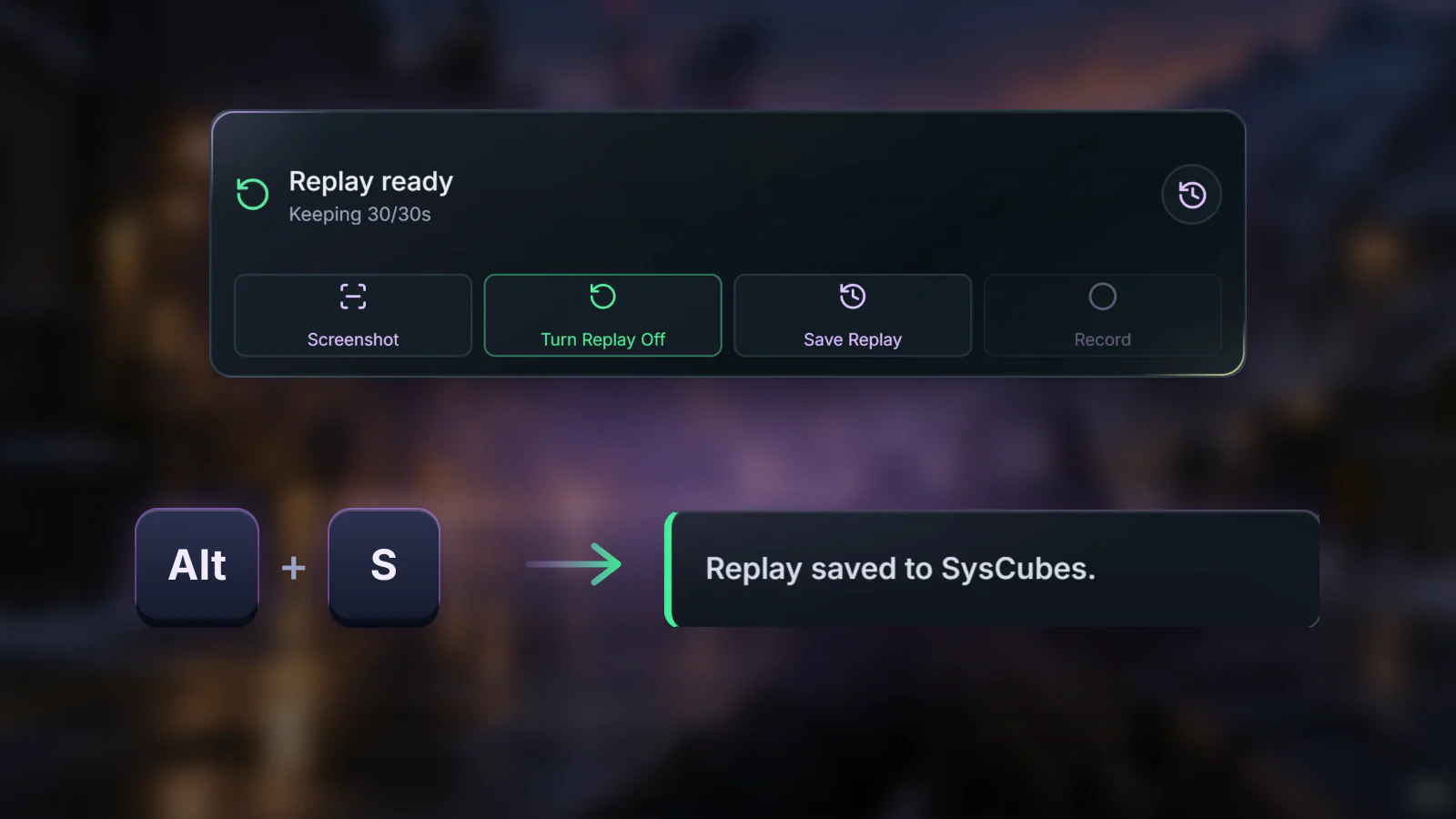
SysCubes is a free Windows app for Overwolf with a visible replay control. It keeps 30 seconds by default, adjustable up to 40 seconds for a longer fight.
Before the drop Turn on Replay before you drop in. From then on, the last 30 seconds are always ready to save.
- Install SysCubes. Open Screenshot & Record and select Enable Replay in the lobby, before the match starts.
- Right after the last enemy goes down, press Alt + S or select Save Replay.
See when replay is ready
Clip too short, silent or not saving? Check these first
The clip starts after the fight began
The earlier part rolled out of the buffer before you saved. Save as soon as the last enemy goes down, before the end-of-round screen, or set a longer duration: up to 40 seconds in SysCubes Capture settings, or longer in Game Bar.
Friends' voices are missing
SysCubes captures game sound, filtered to the game, and the microphone only when you turn it on. Discord is a separate app and is not included. To record Discord too, use an app-audio setup such as OBS.
Save Replay does nothing
Check that Replay is enabled and that a manual recording is not running, because the two cannot run together. Then check the Save Replay key in the game's SysCubes profile.
More questions about Call of Duty clips
How do I clip Warzone on PC?
Turn on a replay tool before the match, such as Xbox Game Bar's Record what happened or SysCubes Replay, then press its save key right after the moment: Win + Alt + G for Game Bar or Alt + S for SysCubes by default.
How long should the replay be for Warzone?
30 seconds covers most gunfights. Use up to 40 seconds in SysCubes when you want the approach as well, and save straight after the fight so the start is still in the buffer.
Can I capture proximity chat?
Proximity chat is part of the game's own sound, so a game-audio capture includes it. SysCubes keeps the clip to the game's own sound, so other apps stay out of it.
Where are the clips saved?
Game Bar saves to Videos/Captures. SysCubes uses the Videos folder chosen in its Capture settings, where Open folder takes you to the files.
Sources and verification
Reviewed November 8, 2026. Windows steps follow Microsoft's documentation; SysCubes details come from product documentation. Capture support for a specific game can change with game and app updates, so make a test clip in the lobby.