
How to Clip Fortnite on PC: Save the Last 30 Seconds
Quickest way: turn on background recording and press Win + Alt + G right after the elimination. Or keep a SysCubes Replay running and save it with Alt + S.
Option 1: Windows Game Bar
Xbox Game Bar is the default capture tool in Windows 11 and 10. Background recording must be enabled in Windows Settings before boarding the Battle Bus.
Capture scope Records the active Fortnite window, but background recording must run constantly and Win + Alt + G can be awkward during building fights.
- In Windows Settings, open Gaming > Captures. Turn on Record what happened and set the history to 30 seconds.
- Open Fortnite. In Video settings, set Window Mode to Windowed Fullscreen so the Windows recording overlay captures cleanly.
- Play your match. Right after an elimination, snipe or Victory Royale, press Win + Alt + G to save the preceding 30 seconds.
- Find the saved video in
Videos/Captures, or press Win + G to review it in the Game Bar gallery.
If background recording was turned off before the fight started, Game Bar cannot recover past footage.
Option 2: SysCubes Recommended

SysCubes is a free Windows gaming app with a Replay buffer and a Save Replay shortcut, so you can keep an elimination without opening a menu. It runs through Overwolf.
Before the match Enable Replay before entering the lobby. From then on, the last 30 seconds are always ready to save.
- Install SysCubes. Open Screenshot & Record and click Enable Replay before boarding the Battle Bus.
- Play your match. The 30-second default buffer keeps the approach, build duel and elimination. You can set it anywhere from 5 to 40 seconds.
- Immediately after the play, press Alt + S (or your own binding, such as a mouse thumb button) to save the clip to your PC.
Know the buffer is running before you drop
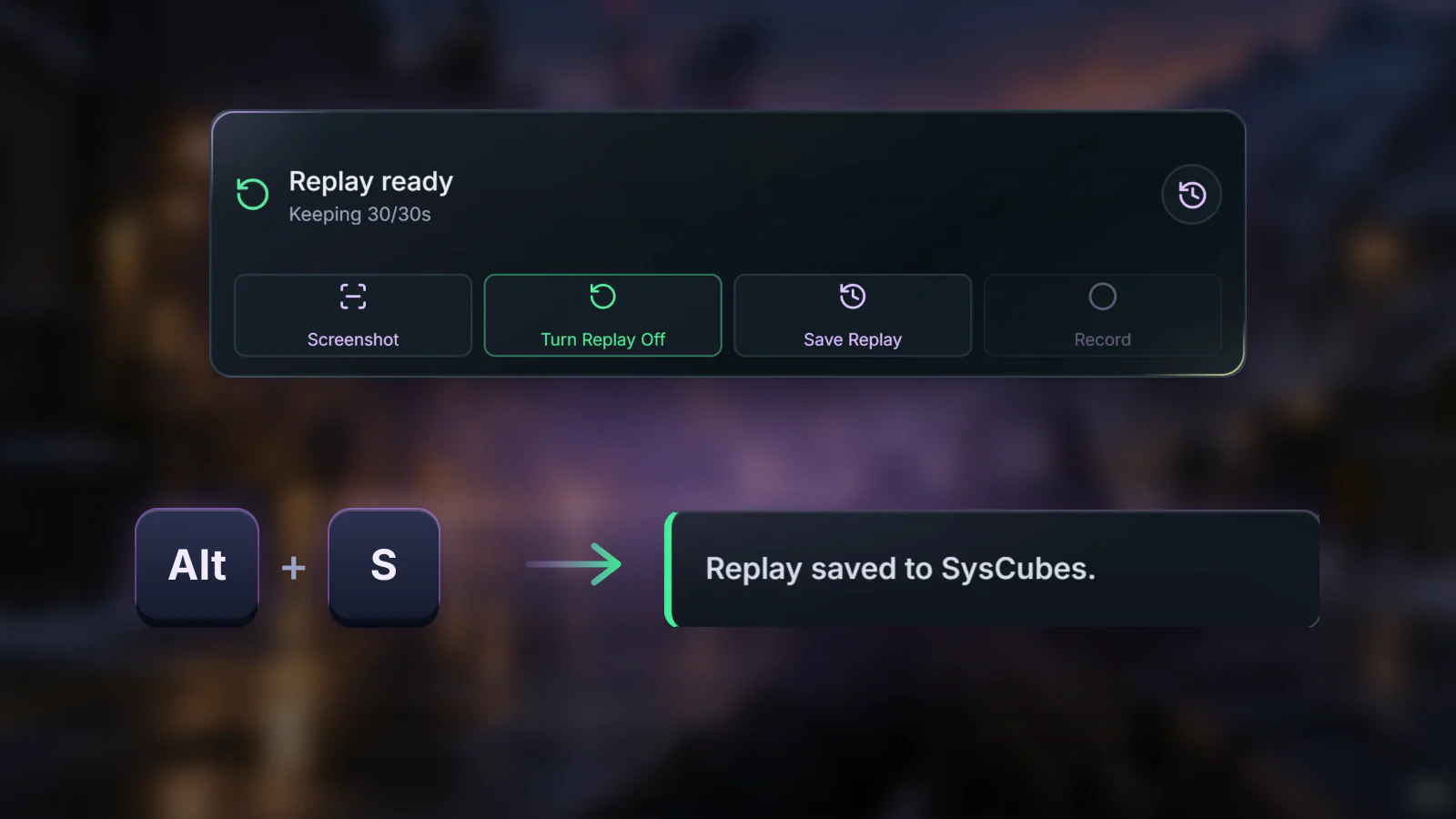
The widget shows Replay ready, so a build fight is saved with one shortcut instead of a menu.
Option 3: Epic's Postparty phone app
Postparty is Epic Games' own phone app for Fortnite clips. You press a key in the match and the clip is sent to the app on your phone, where you can trim and share it.
Where the clip goes The last 30 seconds land in the Postparty library on your iPhone or Android phone, so you need the app, the same Epic Games account and an internet connection.
- Install Postparty on your iPhone or Android phone and sign in with the same Epic Games account you use for Fortnite.
- Play a match on your PC. Right after the moment, press the clip key. Epic lists Esc as the PC default, and Fortnite also offers a clip prompt after an elimination. You can check the binding in Fortnite's settings, under controls.
- Wait for the notification on your phone, then open the clip in the Postparty library to trim it, share it or download it to your phone.
Postparty captures only during gameplay, and the clip arrives on your phone rather than as a video file in a PC folder.
Missed the clip or delayed save? Check these first
Save promptly before celebrating
Emoting or talking for 20 seconds after a Victory Royale pushes the start of the gunfight out of the rolling buffer. Tap your save key right after the final elimination.
Adjusting buffer for longer build fights
If complex end-game rotations exceed 30 seconds, increase Replay buffer in SysCubes Capture settings up to 40 seconds, or use manual Record for full tournament matches.
Fortnite replay files versus video clips
Fortnite's Replays menu stores match data that can only be viewed inside Fortnite, and older replays stop working after game updates. To share a moment, save it as a video while you play, or record the screen while the replay plays back.
Buffer timing, replay angles and saved files
How do I clip Fortnite on PC with SysCubes?
Enable Replay in the SysCubes widget before playing, let the 30-second rolling buffer fill during the match, and press Alt + S immediately after a highlight. The clip is saved to the Videos folder selected in Capture settings.
Is an in-game Fortnite replay the same as a video clip?
No. A Fortnite replay saves match data for the game's own replay viewer, so it can't be opened in Discord or a video player. A clip is a video file of your live point of view with game audio.
What shortcut saves a Fortnite highlight?
Alt + S is the default Save Replay hotkey for new profiles. You can customize this shortcut in SysCubes Hotkey settings to a mouse side-button (MB4/MB5) so you never take your fingers off the WASD movement keys.
Will a 30-second buffer keep my entire fight?
Yes, provided the fight and the delay before you save fit within 30 seconds. If your build battles take longer, adjust the buffer to 40 seconds in Capture settings.
Can I record cinematic camera angles from Fortnite replays?
Yes. Open an available match in Fortnite's Career > Replays screen, position the camera, and record the screen while it plays, for example with SysCubes Record or Game Bar's Win + Alt + R. Make a short test recording first.
Does Fortnite have its own clipping app?
Yes. Epic's Postparty phone app saves the last 30 seconds of a Fortnite match to a library on your iPhone or Android phone when you press the clip key. It needs the same Epic Games account in the app and in the game. For a video file on your PC, use Game Bar or SysCubes Replay.
Where does SysCubes save my Fortnite clips?
SysCubes saves clips to the Videos folder selected in Capture settings; use Open folder there to find them. They are local files you can trim or share directly.
Sources and verification
Reviewed November 10, 2026. Windows Game Bar instructions verified against official Microsoft support. Fortnite replay systems and the Postparty steps verified against Epic Games documentation. SysCubes defaults (Alt + S, 30-second buffer, 5-40 second range) use the verified product specification.