
How to clip CS2 on PC
Save the last 30 seconds of a CS2 clutch, ace or bomb defusal as an MP4 video on Windows.
Option 1: Windows Game Bar
Xbox Game Bar is the built-in screen capture tool in Windows 11 and 10. Background recording must be enabled in Windows Settings before the buy phase ends.
Capture scope Records the game window. Background recording must stay on for the whole match.
- In Windows Settings, open Gaming > Captures. Turn on Record what happened and set the history to 30 seconds.
- Launch Counter-Strike 2. In Video Settings, choose Fullscreen Windowed so the Windows recording overlay captures reliably.
- Play your match. Right after an ace, spray transfer or bomb defusal, press Win + Alt + G to save the rolling 30-second highlight.
- Find the saved video in
Videos/Captures, or press Win + G to preview it in the Game Bar gallery.
If background recording was disabled before the round began, Game Bar cannot retroactively recover the clutch.
Option 2: SysCubes Recommended

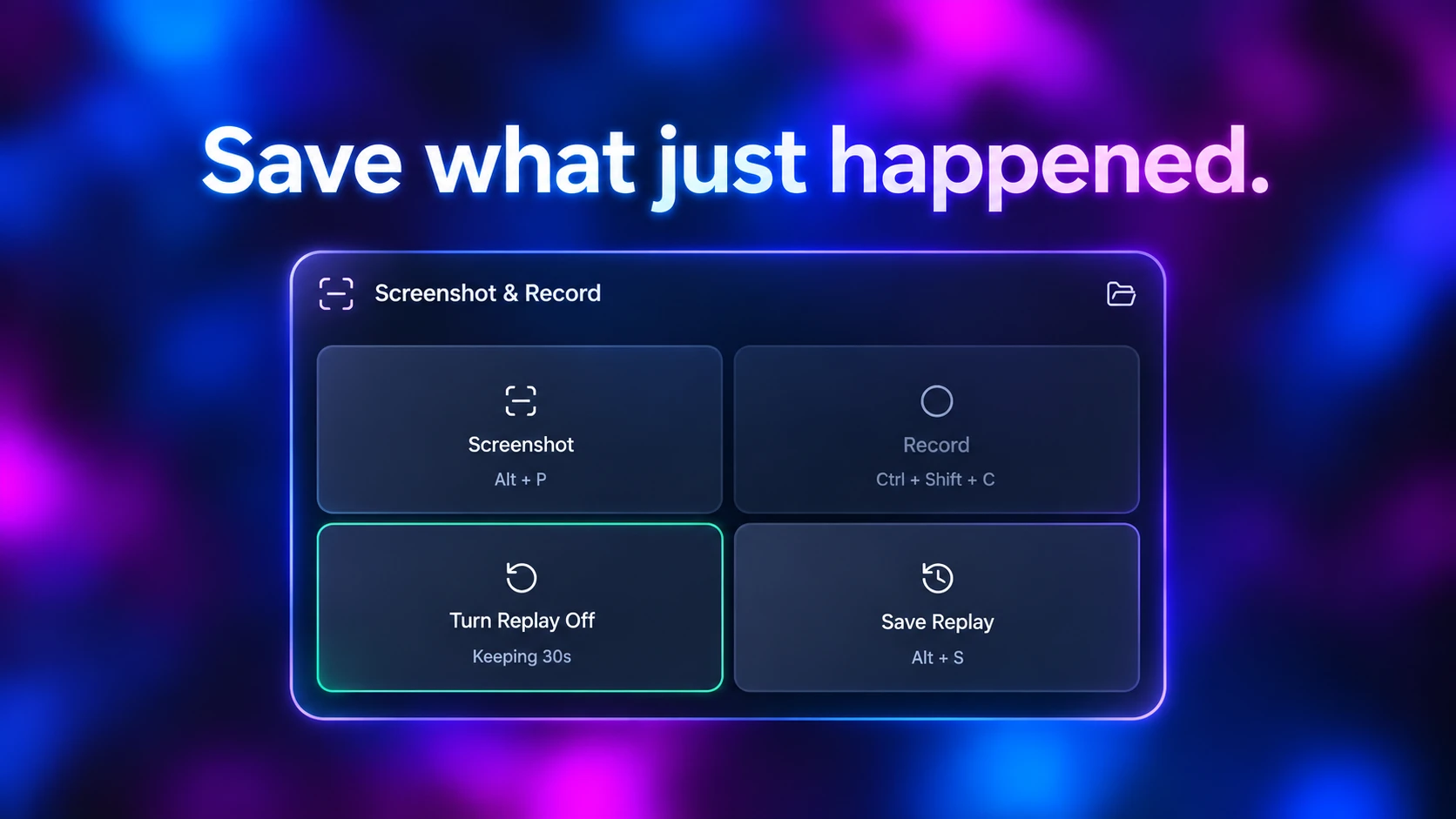
SysCubes is a free Windows app for Overwolf with a visible replay control. It keeps 30 seconds by default, adjustable from 5 to 40 seconds.
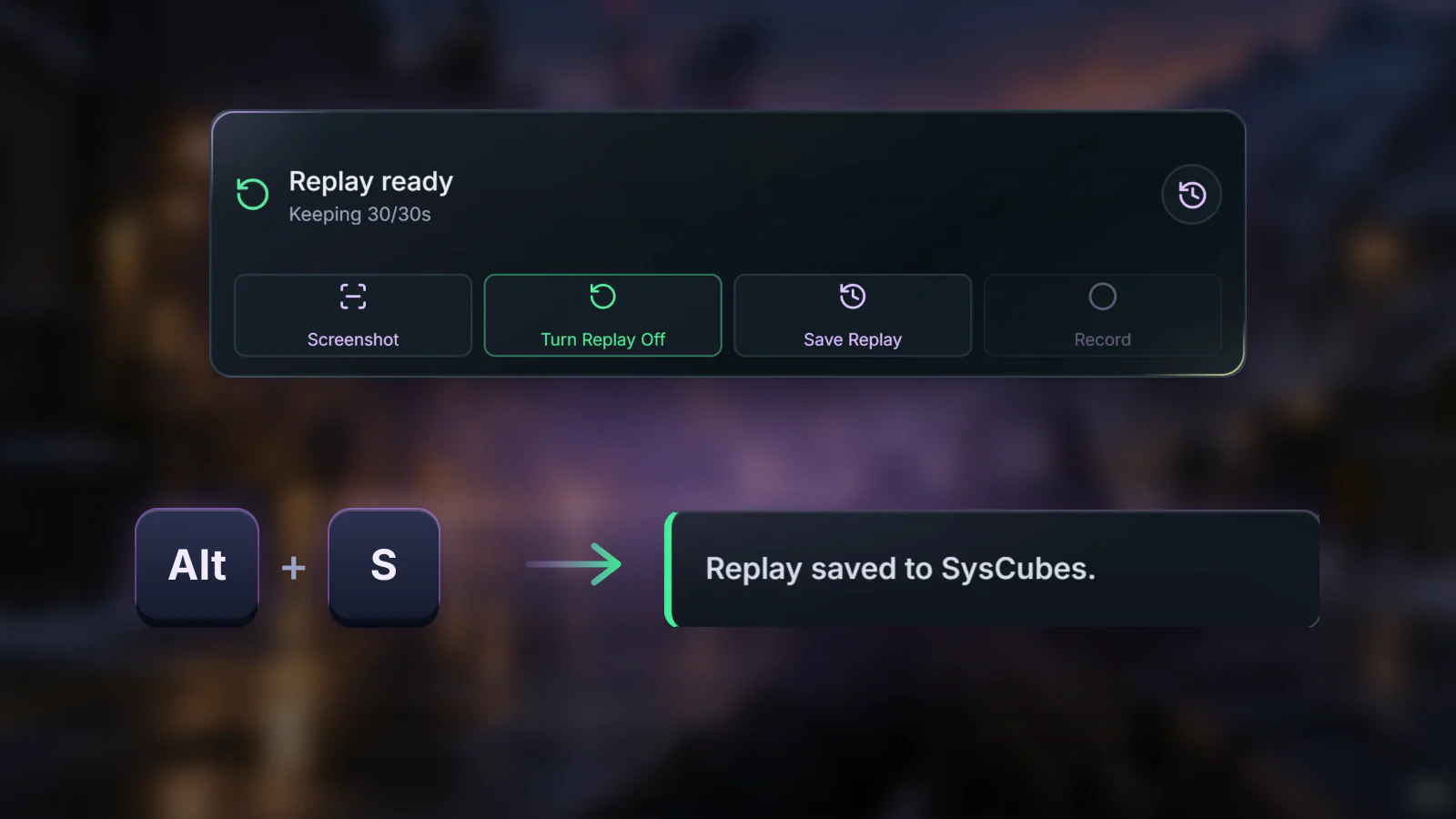
Before the round Enable Replay before entering the server. From then on, the last 30 seconds are always ready to save.
- Install SysCubes. Open Screenshot & Record and click Enable Replay before the buy phase ends.
- Play your match with a 30 to 40-second replay running, so the whole round is still in the buffer when you save.
- Immediately after defusing or winning your 1vX clutch, press Alt + S or select Save Replay to save the clip to your PC.
See when replay is ready
Clip too short, launch options or shortcut problems?
Launch options and Trusted Mode
Counter-Strike 2 runs in Trusted Mode, which blocks some third-party tools that inject into the game. Read Valve's Trusted Mode page before adding -allow_third_party_software, because Valve says that option can lower your Trust Factor.
The clip starts after the round began
The earlier part rolled out of the buffer before you saved. Save as soon as the round ends, or set a longer duration: up to 40 seconds in SysCubes Capture settings.
Changing the save key
If Alt + S is awkward during movement, change the Save Replay key in the Counter-Strike 2 profile in SysCubes settings, then test it in a practice match.
Demos, sound and saved files
How do I clip CS2 on PC with SysCubes?
Enable Replay in SysCubes before the round, keep a 30 to 40-second replay, and press Alt + S right after the moment. SysCubes saves the clip to the Videos folder set in Capture settings.
Does CS2 have its own built-in video clipping tool?
No. CS2 records match demos, which are game data files, not videos. To share a play from a demo, you replay the match in CS2 and record that playback. A replay tool saves the live moment as a video instead.
Does the clip include voice chat?
CS2's own team voice is part of the game sound, so game capture includes it. SysCubes keeps the clip to the game's own sound, so other apps stay out of it. Turn on Microphone in Capture settings to add your own voice.
Where does SysCubes save Counter-Strike 2 clips?
SysCubes uses the Videos folder chosen in its Capture settings. Use Open folder there to find the saved clips.
Sources and verification
Reviewed November 8, 2026. Trusted Mode details follow Valve's support page; Windows steps follow Microsoft's documentation; SysCubes details come from product documentation.