
How to Record Game and Discord Audio Together on PC
Quick answer: in free OBS Studio, add a Game Capture with audio, add an Application Audio Capture for Discord, turn off Desktop Audio and set your mic. Each part can go on its own track for editing.
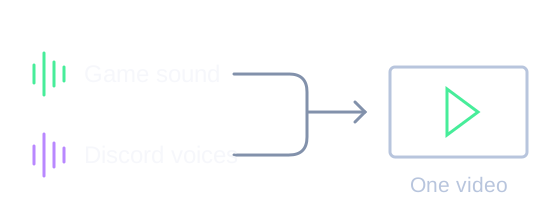
Option 1: OBS for game + Discord
OBS Studio is recording software you install on your PC. Its per-app audio capture can combine game sound and Discord voices. This setup needs Windows 10 version 2004 or later, or Windows 11.
Choose the sources Capture the game and Discord separately, without including every other app playing sound.
- Install OBS Studio from
obsproject.comand open it. Run Tools > Auto-Configuration Wizard for recording. Open your game and join the Discord call. - In Sources, select + and add Game Capture. Choose Capture specific window, select your game and enable Capture Audio (BETA). Check that the game appears in the preview.
- Add an Application Audio Capture (BETA) source and select the Discord window. In Settings > Audio, disable Desktop Audio to prevent duplicate sound. Set Mic/Auxiliary Audio to your microphone if you want your voice, or Disabled if you do not.
- While both apps make sound, use Start Recording and Stop Recording for a short test. Play the file from the Recording Path in Settings > Output. Once you hear both, start the main recording before the action.
The saved video covers the time recording was running. It cannot recover an earlier unrecorded game or call.
Option 2: SysCubes For game and mic clips

SysCubes is a Windows app with a recording widget. Use it when you want supported game audio and your own microphone.
Clean game sound Records the game's own sound plus your microphone, so notifications and other apps stay out of the clip.
- Install SysCubes. In Capture settings, enable System audio and Microphone.
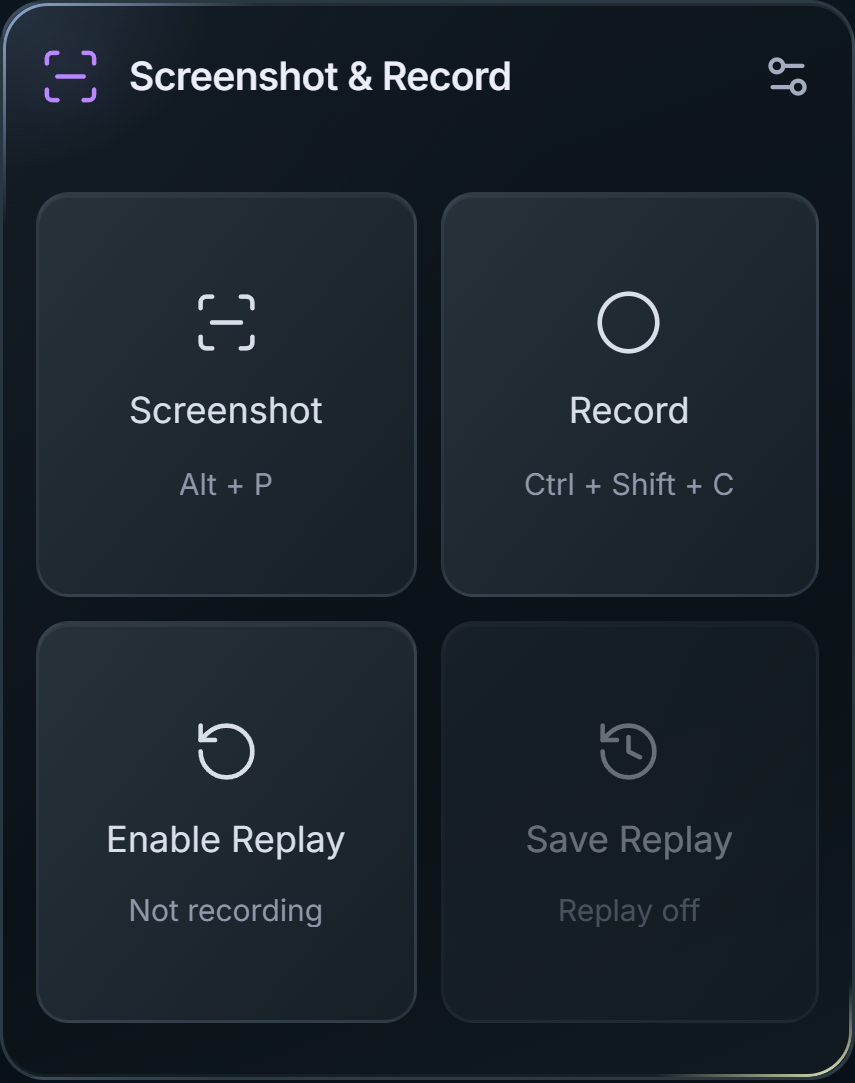
- In Screenshot & Record, select Record before playing; Stop Recording afterward.
Start a recording from the widget
Missing sound or an echo? Check this
One app is silent in the test
Confirm that both the game and Discord are making sound, that their correct windows are selected, and that their OBS mixer meters move. Per-app capture is not compatible with every application. As a fallback, disable the per-app audio capture and use Desktop Audio for the output device both apps play through. That also includes other sounds on that device; test again.
The recording has doubled sound
Do not capture the same audio through both Desktop Audio and per-app sources. Disable all active global Desktop Audio entries when using the per-app method above, then make another test recording.
My voice is missing
The Discord source captures voices coming from the call, not your microphone input. Select your mic in OBS Settings > Audio and check its meter while speaking. In SysCubes, enable Microphone before recording. If Replay is active, turn it off before starting a manual recording.
Microphones, source selection and files
How do I record Discord audio and gameplay on PC with separate audio tracks?
In OBS Studio Settings > Output, set Output Mode to Advanced and check Tracks 1, 2, 3, and 4 under Recording. In Advanced Audio Properties, route your full mix to Track 1, game sound to Track 2, your mic to Track 3, and Discord Application Audio Capture to Track 4. When importing the MP4/MKV into an editor, each source appears on an isolated timeline track.
Why is Discord audio not recording in my gameplay clips?
Game capture often records only the game's own sound. SysCubes, for example, filters in-game capture to the game. To include Discord calls, add Discord as an Application Audio Capture source in OBS, or record the full desktop audio output, which also includes any other sound on that device.
Do I need virtual audio cables or Voicemeeter to record Discord on Windows 11?
No. Windows 10 (version 2004+) and Windows 11 include native Application Audio APIs that OBS Studio uses via 'Application Audio Capture (BETA)'. You can isolate Discord.exe directly in OBS without installing virtual audio cables or complex audio routing drivers.
How can I balance Discord and game sound while playing without Alt-Tabbing?
SysCubes includes an in-game volume mixer. Adjust separate sliders for your game, Discord call and music from the overlay of a supported game, or from a second screen, without minimizing your game.
Can the SysCubes volume mixer add Discord to a recording?
No. The volume mixer changes playback volume. It does not add recording sources, bypass game-audio filtering or create separate recording tracks.
Does recording Discord also record my own voice?
Capture your microphone separately. In OBS, select it under Mic/Auxiliary Audio. The Discord application source captures the incoming call audio, while your mic supplies your own voice.
Where is the OBS recording saved?
Check Recording Path in Settings > Output. Open that folder after stopping the recording. The test should include audible game sound, someone speaking in Discord and your voice if the microphone is enabled.
Can I recover missing Discord sound afterward?
If Discord audio was never recorded, it is not in that video and cannot be restored from the file. Select and test the audio sources before the session you want to keep.
Where are SysCubes recordings saved?
Open the Videos folder selected in Capture settings. System audio starts on and Microphone starts off; enable the microphone before recording your own voice.
Sources and image details
Reviewed November 8, 2026. The OBS workflow follows official source, setup and recording documentation. SysCubes recording controls and game-audio filtering use the supplied engineering specification. The top diagram explains routing; the product image is a production component rendered with sample data, not a live game capture.