
How to Clip the Last 30 Seconds on PC (Win + Alt + G)
Quick answer: turn on background recording in Windows, then press Win + Alt + G to save the last 30 seconds. Below: the full setup, and a one-key replay that saves 5-40 seconds.
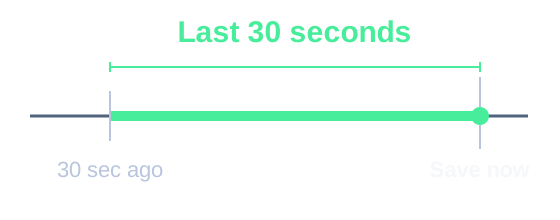
Option 1: Windows Game Bar
Xbox Game Bar is the game-capture overlay included with Windows 11 and 10. Background recording must be on before the moment you want to keep.
Capture scope Records a game or app window, rather than the entire Windows desktop.
- In Windows Settings, open Gaming, then Captures. Turn on Record what happened and choose 30 seconds under Record the last.
- Open your game or app and let it record for at least 30 seconds. After the moment, press Win + Alt + G to save the recent clip.
- Find the video in
Videos/Captures, or press Win + G and open the capture gallery.
If background recording was off, this shortcut cannot recover the earlier moment.
Option 2: SysCubes Recommended

SysCubes is a free Windows app with a visible replay control. It keeps 30 seconds by default.
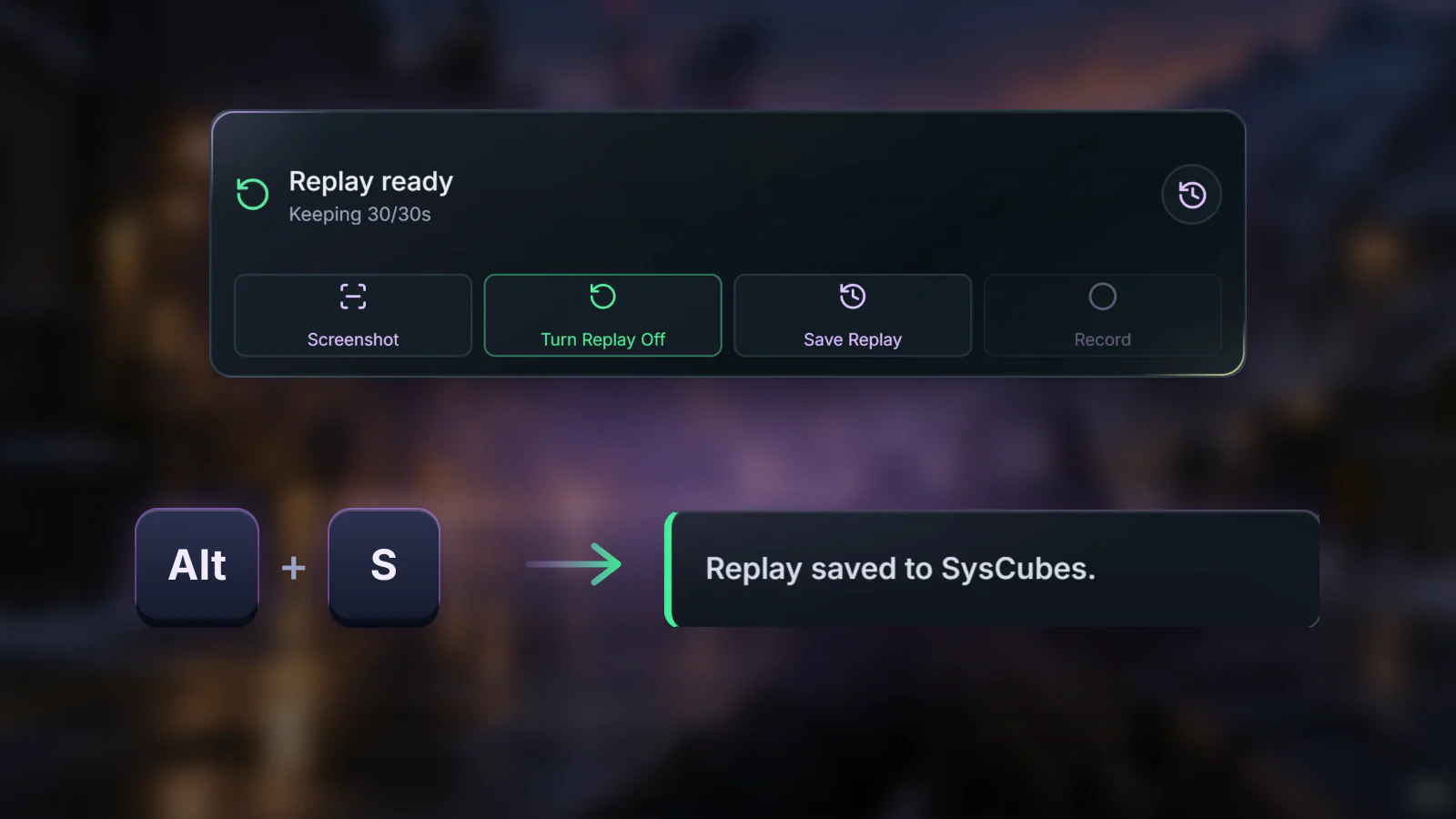
Before playing Turn on Replay before you play. From then on, the last 30 seconds are always ready to save.
- Install SysCubes. Open Screenshot & Record and select Enable Replay before playing.
- Play for 30 seconds. After the moment, select Save Replay.
See when replay is ready
Clip not saving? Check these first
Different labels or a shorter clip
On Windows 10, enable Record in the background while I’m playing a game in Captures. If you changed the SysCubes duration, set Replay buffer in Capture settings to 30 seconds. Allow a full 30 seconds of recording before saving; only collected history can be saved.
Replay will not turn on in SysCubes
SysCubes runs one capture mode at a time. If a manual recording is active, stop it, then select Enable Replay. Check the current per-game shortcut if Alt + S has been changed.
A game shows a blank capture
Capture availability depends on the game. If Exclusive Fullscreen blocks capture, try Borderless Windowed or Borderless Fullscreen, then make a fresh test clip.
Clip length, sound and saved files
Can I clip a moment if recording was off?
No. These methods save an existing rolling video history. Enabling recording afterward cannot recreate an earlier unrecorded moment.
Can SysCubes save a different duration?
Yes. Change Replay buffer in Capture settings. The supported range is 5 to 40 seconds, with 30 seconds as the default. Wait for the selected history to accumulate before saving.
Does a SysCubes replay include sound?
System audio is on by default, but in-game capture is filtered to the game. Microphone is off by default and must be enabled to include your voice. Do not assume a Discord call is included.
Where does SysCubes put the clip?
It uses the Videos folder selected in Capture settings. Use Open folder there to find the saved footage. Screenshots use a separate Images folder.
Sources and image details
Reviewed November 8, 2026. Windows instructions use official Microsoft documentation. SysCubes controls, defaults and capture limits use the supplied engineering specification. The timeline is conceptual; the product visual is a production component rendered with sample data, not a live game capture.