
How to Clip VALORANT on PC, Including Match Replays
Save the last 30 seconds of a live round as a video on Windows, or record a moment from VALORANT's built-in match replay before the next patch removes it.
Option 1: Windows Game Bar
Xbox Game Bar is the built-in capture tool in Windows 11 and 10. Background recording must be enabled in Windows Settings before the match starts.
Capture scope Captures the active VALORANT window, but requires continuous background recording and Win + Alt + G can collide with game controls.
- In Windows Settings, navigate to Gaming > Captures. Turn on Record what happened and set the duration to 30 seconds.
- Launch VALORANT. In Video settings, set Display Mode to Windowed Fullscreen or Borderless if capture shows a black screen.
- Play your match. Immediately after an ace or clutch, press Win + Alt + G to save the last 30 seconds.
- Find the saved video in
Videos/Captures, or press Win + G to view it in the Game Bar gallery.
If background recording was disabled before the round began, Game Bar cannot retroactively recover the clutch.
Option 2: SysCubes Recommended

SysCubes is a free Windows gaming app with a Replay buffer and a Save Replay shortcut, so you can keep a clutch without opening a menu. It runs through Overwolf.
Before the round Enable Replay before entering the queue. From then on, the last 30 seconds are always ready to save.
- Install SysCubes. Open Screenshot & Record and click Enable Replay before queuing for your VALORANT match.
- Play your match. The 30-second default buffer keeps the most recent part of the round, and you can set it anywhere from 5 to 40 seconds.
- Immediately after winning your clutch, press Alt + S (or your own binding, such as a mouse side button) to save the clip to your PC.
Know the buffer is running before the round
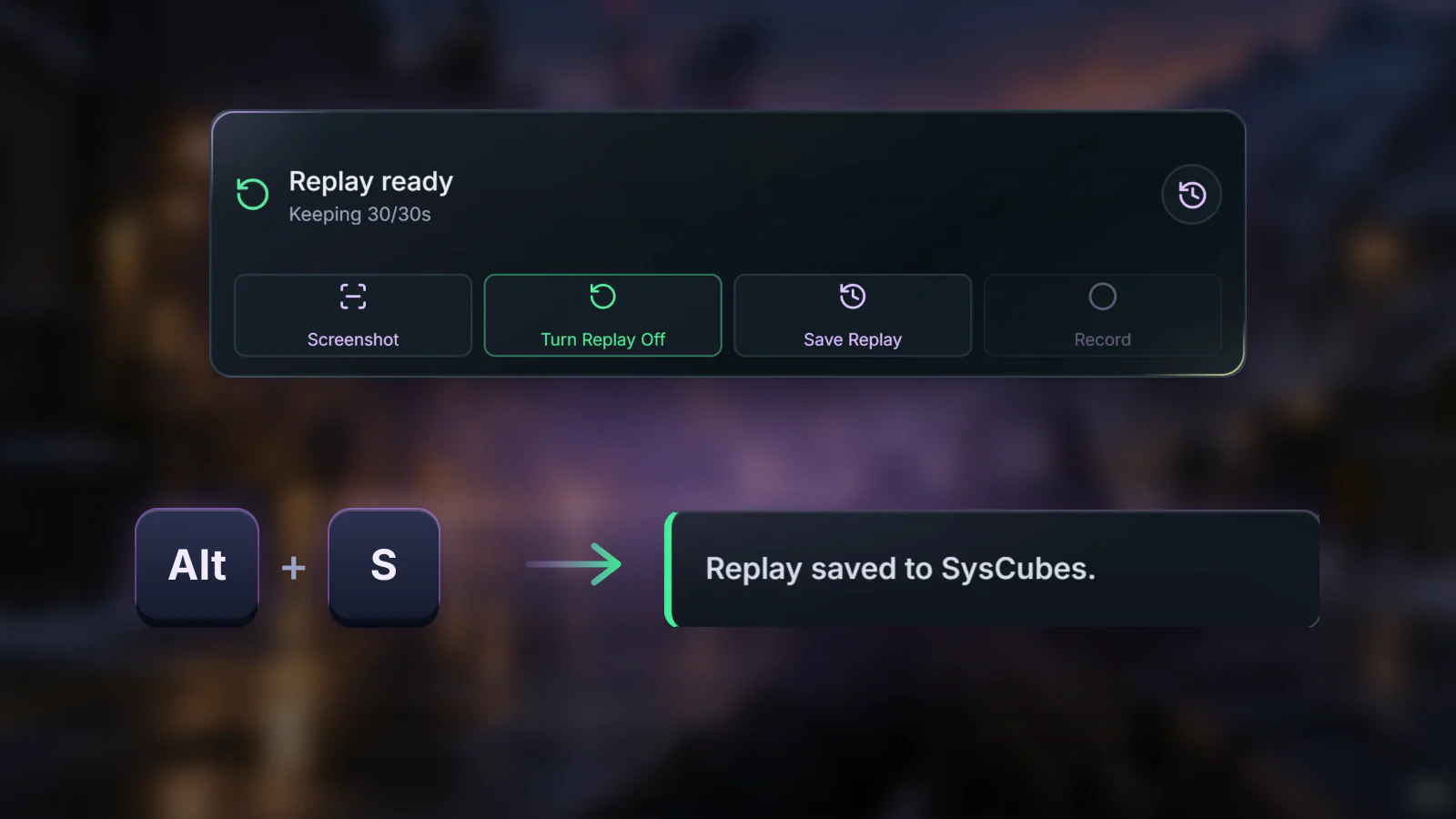
The widget shows Replay ready, so a clutch is saved with one shortcut instead of a menu.
Clip not saving, black screen or a replay to keep? Check these first
Turn a VALORANT match replay into a video
VALORANT replays play only inside the game client and can't be exported. Download the replay from the match details or Career, select Watch, choose the player view or free camera, then record the screen while it plays, for example with Game Bar's Win + Alt + R to start and stop recording. Do it before the next patch, when the replay expires.
Black screen in exclusive fullscreen
If Exclusive Fullscreen prevents video capture in your graphics configuration, change VALORANT's display mode to Windowed Fullscreen or Borderless, then save a practice clip.
Shortcut collision with agent abilities
The default Save Replay shortcut is Alt + S. If this overlaps with an ability or push-to-talk key, rebind Save Replay in SysCubes Hotkeys settings to Mouse Button 4, Mouse Button 5, or another convenient binding.
Check Riot's third-party software policy
Riot's third-party application policy sets what software may do alongside VALORANT. It doesn't publish a complete list of approved apps, so read the policy before using any overlay or recorder in ranked play.
Match replays, buffer timing and saved files
Does VALORANT have a built-in replay system?
Yes. Since patch 11.06 on PC, you can download a replay from match details or the Career tab and watch it in the client with player views and a free camera. Replays can't be exported as video and expire when the next patch releases, so record any moment you want to keep while it plays back.
Can you export a VALORANT replay as a video?
No. A downloaded replay only plays inside the VALORANT client. To keep a moment, open the replay, choose the camera, and record the screen while it plays, for example with Game Bar's Win + Alt + R. Do it before the next patch removes the replay.
How do I clip a live VALORANT round?
Enable SysCubes Replay before starting your match. The rolling buffer holds the most recent gameplay, 30 seconds by default. The moment you win a clutch or hit an ace, press Alt + S (or your own binding) to save that highlight to your PC.
How do I clip the last 30 seconds in VALORANT?
With Game Bar, turn on background recording and press Win + Alt + G right after the play. With SysCubes, enable Replay before queuing and press Alt + S right after the clutch to save the preceding 30 seconds.
Is clipping software allowed with Vanguard?
Riot's third-party application policy sets the rules for software running alongside VALORANT, and Riot doesn't publish a complete list of approved apps. SysCubes runs through Overwolf and doesn't change VALORANT's files. Read Riot's policy before using any overlay or recorder in ranked play.
Can I recover an unrecorded clutch if Replay was disabled?
Not with a replay buffer: it only saves gameplay from while it was running. If the round is in VALORANT's match replay, you can record it from there before the next patch.
Can I adjust the buffer window to longer or shorter than 30 seconds?
Yes. In SysCubes Capture settings, the buffer duration is adjustable between 5 and 40 seconds. A 30-second window is a good fit for most round-ending clutches.
Does the clip include Discord voice and microphone?
SysCubes records game audio, and your microphone if you turn it on in Capture settings; it is off by default. Discord voices are not included when capturing the game. To record game and Discord together, use the OBS method in our game and Discord audio guide.
Where are my saved VALORANT clips stored?
SysCubes saves clips to the Videos folder selected in Capture settings; use Open folder there to find them. Game Bar saves to Videos/Captures by default.
Sources and verification
Reviewed November 8, 2026. Windows capture steps verified against official Microsoft documentation. VALORANT replay behavior checked against Riot's replay announcement and Replays FAQ. SysCubes defaults (Alt + S, 30-second buffer, 5-40 second range, microphone off by default) use the verified product specification.
- Riot Games: Replays FAQ & Pro Tips
- Riot Games: Replays, everything you need to know
- Riot Games: Third-Party Applications Policy
- Overwolf: VALORANT Game Integration
- Microsoft: Windows Game Bar Captures Guide
- SysCubes: VALORANT Clipping & Capture Troubleshooting
- SysCubes: Record Game & Discord Audio Guide
- SysCubes: Best Game Clipping Software Comparison