
Game Clipping on a Low-End PC: Keep Play Responsive
Choose a clipping setup a modest or older Windows PC can run, and check it with your own game before you rely on it.
Option 1: Your graphics card's replay or Game Bar
The NVIDIA App, AMD Software and Xbox Game Bar already include a replay feature, so there is no extra recorder to install. The graphics card apps use the card's own video encoder, which takes work off the processor.
- Pick one tool: Instant Replay in the NVIDIA App or AMD Software, or Record what happened in Windows Settings under Gaming and Captures.
- Keep the replay short, such as 30 seconds, and use the lowest quality or resolution option the tool offers if your game slows down.
- Play the same short scene with the replay off, then on, and compare how smooth the game feels and how the saved clip looks.
Run only one recorder at a time. Two replay tools running together add competing work and can block each other.
Option 2: SysCubes Recommended

SysCubes is a free Windows app for Overwolf that puts a replay control beside live CPU, GPU and FPS readings, so you can see what recording costs while you play. Its replay keeps 30 seconds by default, adjustable from 5 to 40 seconds.
Lighter recording Choose the Performance quality, 720p at 30 fps, for a lighter load on a modest PC. The default is 1080p at 30 fps, and the bitrate is set automatically.
- Install SysCubes. In the Screenshot & Record settings, set Recording quality to Performance · 720p / 30 FPS, then select Enable Replay before playing, with the Performance Monitor widget open.
- Play the same scene you tested without recording, watch FPS, then press Alt + S to save a test clip and play it back.
See when replay is ready
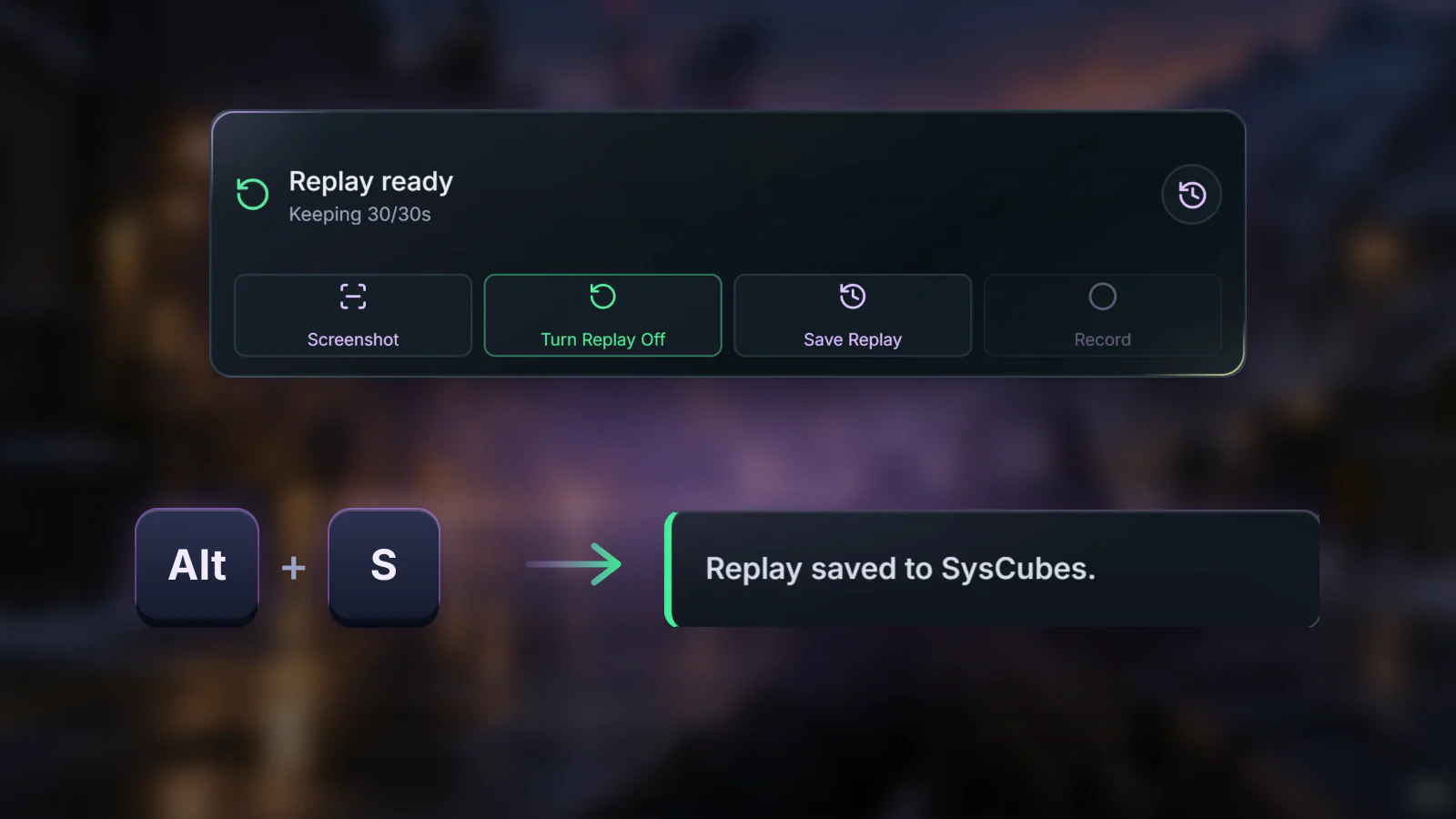
How to test what your PC can sustain
A fair comparison changes one thing at a time in the same game scene. Use these three runs for any recorder.
| Run | What to do | What to note |
|---|---|---|
| 1. Recording off | Stop every replay and background recording, then play a repeatable route or benchmark | How smooth it feels and the FPS, if available |
| 2. Replay on | Turn on one replay tool with your intended length and save a short clip | Any change during play and during the save; open the saved clip |
| 3. Planned recording | Turn replay off, start a manual recording before the same route and stop it afterward | Smoothness while recording and the saved file |
Repeat each run. A small difference that does not repeat is normal variation, not proof that one tool is lighter.
Game slows down or the clip looks choppy? Check these first
The game slows down while recording
Close demanding apps you do not need, cap the game's frame rate or lower one graphics setting, then repeat the same scene. On a laptop, use the charger and the maker's performance mode.
The clip is choppy but the game felt smooth
The recorder may not keep up even when the game does. Play the saved file in a normal video player, check that only one recorder was running, and try the Performance · 720p / 30 FPS quality in SysCubes.
Replay or recording?
Replay records continuously while it is on, so it can save a surprise moment. Manual recording only runs between start and stop, which suits a planned round. In SysCubes you choose one mode at a time, so only one capture runs while you play.
How much disk space a clip needs
Multiply the bitrate in megabits per second by the length in seconds and divide by eight to get megabytes. For example, 12 Mbps for 30 seconds is about 45 MB. Real files vary with the content.
More questions about clipping on a low-end PC
What is the best clipping software for a low-end PC?
One that shows you what recording costs. SysCubes puts its Replay control next to live CPU, GPU and FPS readings, so you can play the same scene with replay on and off and keep the setup your PC handles. Give any built-in replay you already have the same test.
Does a shorter replay remove FPS drops?
No. A shorter replay keeps less past footage, but the encoding work continues while replay is on. Test gameplay with replay on and off instead of assuming a shorter buffer is lighter.
Can I record at 720p with SysCubes?
Yes. In the Screenshot & Record settings, set Recording quality to Performance · 720p / 30 FPS. The default is 1080p at 30 fps, and stronger PCs can go up to 4K at 60 fps. Change it while Replay and recording are off.
Sources and verification
Reviewed November 9, 2026. Encoding guidance follows OBS and Overwolf documentation; SysCubes capture details come from product documentation.