
How to Clip the Last Minute on PC: 60-Second Replay Buffer
Three ways to capture the last 60 seconds of PC gameplay so you keep the whole round or teamfight: two tools already on Windows PCs and one lightweight replay overlay.
Option 1: Windows Game Bar
Game Bar is included with Windows 10 and 11. While its default replay window is 30 seconds, Windows Settings lets you increase it to 1 minute or longer before you play.
Requires one-time Settings change The capture length must be configured in Windows Settings before starting your game session.
- Press Win + I to open Windows Settings, then go to Gaming > Captures.
- Under Record what happened, turn the toggle On, then change Record the last from 30 seconds to 1 minute.
- In your game, press Win + Alt + G to save the last 60 seconds.
- Find your saved video in your Windows
Videos\Capturesfolder.
Background recording must be switched on before the round begins. Game Bar cannot recover moments from before background recording was turned on.
Option 2: SysCubes Recommended

SysCubes is a free Windows gaming workspace with an instant replay buffer you configure directly in the app. You can keep 60 seconds in memory and save with a single hotkey while the game stays on screen.
Local video with zero account setup Clips save straight to your chosen local folder with no cloud upload requirement or watermarks.
- Install SysCubes and open Capture Settings. Set your instant replay buffer length to 60 seconds.
- In your game's profile, ensure the Screenshot & Record widget is active, then launch your game.
- When a highlight happens, press Alt + S to save the last 60 seconds immediately.
Save 60 seconds without leaving your game
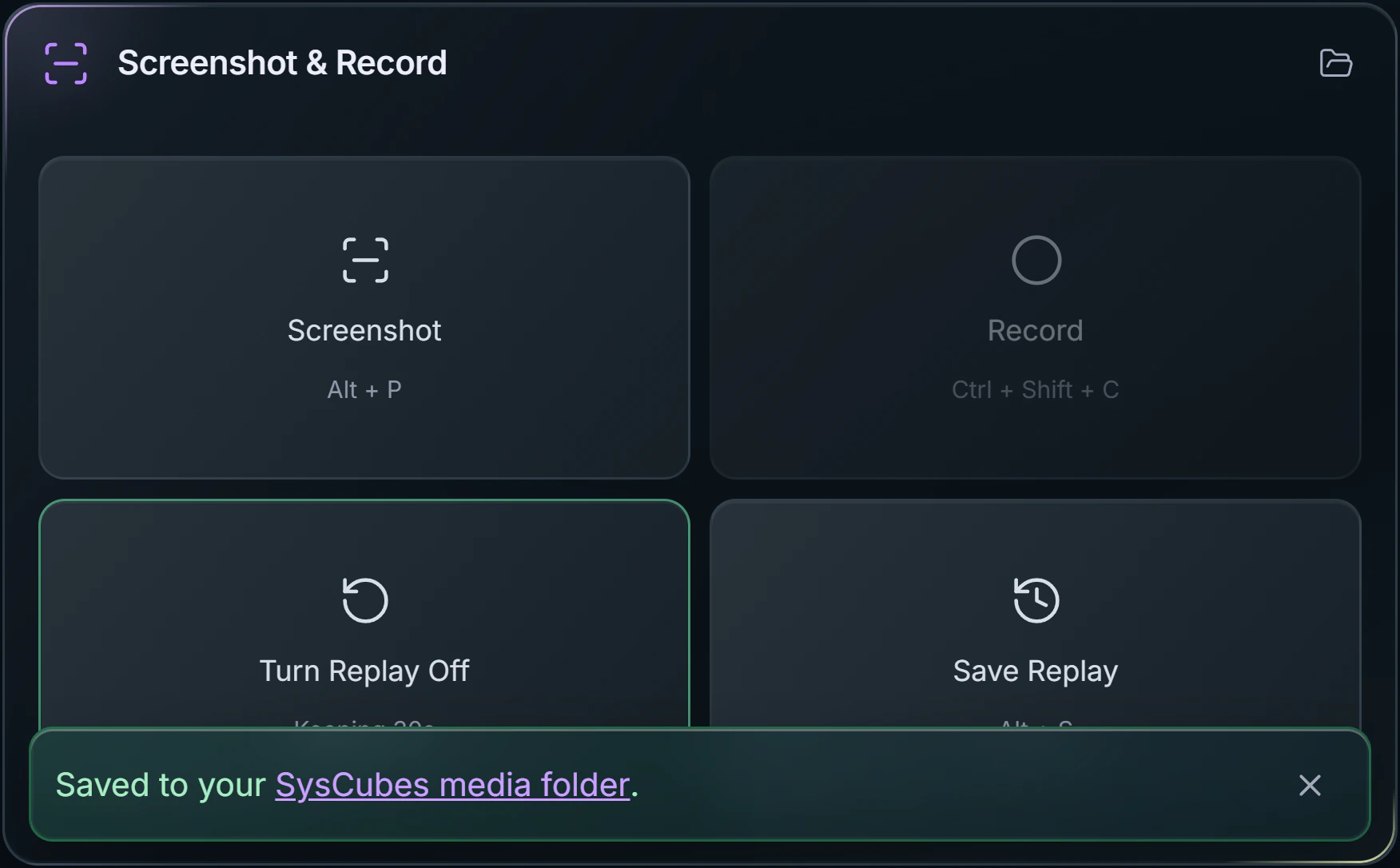
Configurable buffer duration that saves instantly to your local disk.
Option 3: NVIDIA App / GeForce Experience
If your PC has an NVIDIA graphics card, Instant Replay uses dedicated hardware encoding to maintain a rolling buffer from 1 to 20 minutes without heavy CPU load.
NVIDIA GPU required Requires a compatible GeForce GTX or RTX card and the NVIDIA App or GeForce Experience installed.
- Press Alt + Z to open the NVIDIA overlay, then click Settings > Video capture.
- Set the Instant Replay length slider to 1.0 minute.
- Turn Instant Replay On in the main overlay menu.
- In game, press Alt + F10 to save the last minute of video to your disk.
Instant Replay must be switched on before the clutch happens. It cannot recover gameplay from before the rolling buffer was started.
Clip shorter than expected or hotkey not responding? Check these first
The saved clip is only 15 or 30 seconds long
If you pressed save right after joining the game, the buffer may not have gathered a full 60 seconds yet. The replay buffer reaches full length after one minute of continuous play.
The shortcut does nothing in game
Some games running in exclusive full-screen mode intercept global shortcuts. Try switching the game to borderless windowed mode in its display settings, or verify that your capture tool is running in the background.
Audio is missing from the clip
Check that your capture software has selected your default Windows playback device and headset. In SysCubes, you can review audio capture settings under Settings > Capture.
Buffer length, disk space and performance impact
Can I clip the last minute on PC without lag?
Yes. Both SysCubes and GPU hardware encoders (NVENC and AMD AMF) maintain the rolling video buffer in memory using hardware acceleration, which adds minimal overhead during gameplay.
How much storage does a 60-second clip take?
A standard 1080p 60 fps clip typically uses between 100 MB and 250 MB depending on the bitrate. Local tools let you choose your target folder and manage your drive space directly.
Can I save longer clips like 2 or 5 minutes?
Yes. Windows Game Bar allows up to 10 minutes, NVIDIA supports up to 20 minutes, and SysCubes lets you customize replay lengths to fit your favorite games.
Does clipping save Discord and voice chat?
Yes, provided your capture tool is set to record desktop audio. To record both game audio and your microphone, ensure mic recording is checked in your capture preferences.
Related guides and tools
Sources and verification
Reviewed November 14, 2026. Windows Game Bar capture duration settings follow current Windows 11 Gaming settings specifications. NVIDIA Instant Replay steps follow GeForce Experience and NVIDIA App guidelines. SysCubes replay buffer specifications and Alt + S shortcuts use verified product documentation.