
How to Turn Off the FPS Counter in Windows 11 & PC Games
Four ways to dismiss a stuck frame rate counter or performance overlay from Xbox Game Bar, NVIDIA GeForce, Steam or SysCubes without closing your game.
Option 1: Xbox Game Bar (Unpin Performance Widget)
The most common stuck FPS counter in Windows 11 is the Xbox Game Bar Performance widget, which stays on screen over all windows when pinned.
Built-in Windows feature Pressing the Game Bar hotkey opens the widget controls so you can unpin or close the counter.
- Press Win + G on your keyboard to open Xbox Game Bar.
- Locate the Performance window showing your frame rate and hardware percentages.
- Click the Pin icon in the top-right corner of the window so it is no longer highlighted (or click the X to close it entirely).
- Press Win + G again or click your game. The counter will disappear from the screen.
If the pinned box does not show a header bar, move your mouse pointer over the box while Game Bar is open to reveal the pin and close buttons.
Option 2: SysCubes Recommended
SysCubes gives you an instant global shortcut to show or hide all in-game widgets at once, plus per-game profile switches so your screen stays completely clean when you want full immersion.
Single hotkey toggle Press Alt + O anytime to toggle all widgets off, or turn off the overlay entirely in your game profile.
- In game, press Alt + O to instantly hide all active widgets and clear your screen.
- To keep the counter off permanently for that game, open SysCubes on your desktop and select the game's profile under Settings > Widgets.
- Uncheck Overlay for the Performance Monitor. SysCubes saves this preference automatically.
One hotkey to show or hide your widgets
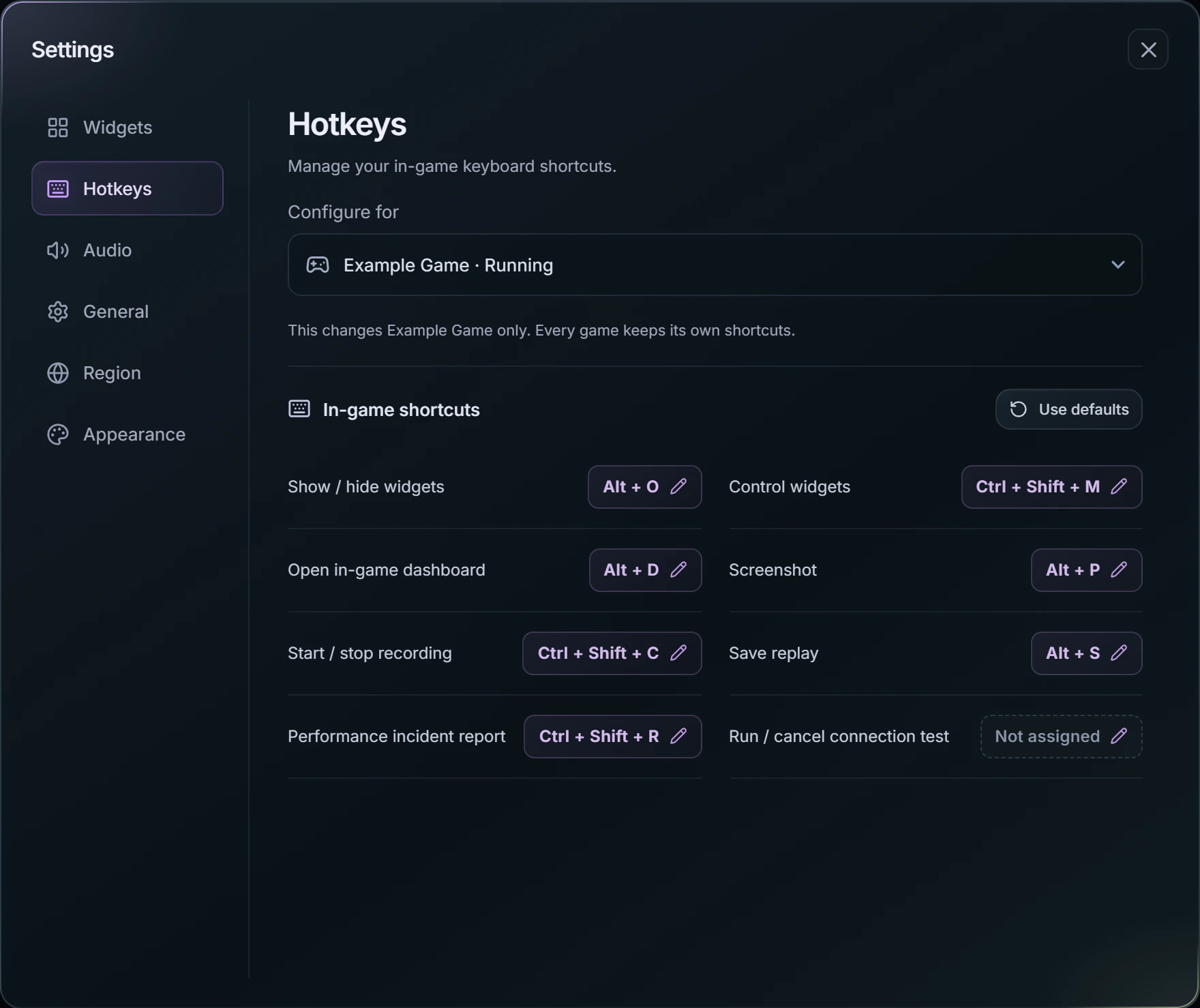
Press Alt + O to dismiss the overlay instantly without opening menus.
Option 3: NVIDIA GeForce / NVIDIA App
NVIDIA's graphics overlay includes a quick toggle key to hide on-screen statistics instantly without diving into menus.
GeForce / RTX systems Works when NVIDIA GeForce Experience or the NVIDIA App is running in the background.
- Press Alt + R on your keyboard to instantly toggle the performance overlay off.
- If the shortcut does not respond, press Alt + Z to open the full NVIDIA overlay, click Statistics, and turn off Show statistics in heads-up display.
- Click outside the overlay menu to return to your game.
If your keyboard shortcut has been customized in NVIDIA settings, check Settings > Keyboard shortcuts to find your assigned toggle key.
Option 4: Steam In-Game FPS Counter
Steam includes a built-in green or white text FPS counter in the corner of all Steam games that can be disabled in the client settings.
Steam games only Applies to games launched through Steam, managed through the Steam desktop client settings.
- Open the Steam client on your desktop, click Steam in the top-left menu, and choose Settings.
- Click the In Game tab in the left sidebar.
- Find In-game FPS counter, open the dropdown, and select Off.
If you are already inside a game, press Shift + Tab to access Steam Settings without exiting the game.
Still seeing numbers on screen after trying these? Check these first
Check for Discord or third-party overlays
Discord, Medal, Outplayed or RivaTuner Statistics Server (RTSS) may be running in your system tray. Look for their icons near your Windows clock and disable their in-game overlay settings.
Check in-game video settings
Many games (such as Valorant, CS2, Overwatch and Fortnite) have their own built-in FPS counters in their Video or Gameplay settings. Turn off 'Client FPS' or 'Show FPS' in the game's menu.
Monitor or TV built-in game mode
Some gaming monitors and smart TVs have a hardware 'Game Bar' or 'FPS / Refresh Rate HUD' built into their physical on-screen display menu. Check your monitor buttons to turn it off.
Shortcuts, persistent overlays and game settings
What is the shortcut to turn off the Windows FPS counter?
Press Windows key + G to open Xbox Game Bar, click the Pin icon on the Performance widget to unpin it, and press Win + G again. For NVIDIA users, the quick toggle key is Alt + R.
Why does the FPS counter stay on my screen after closing the game?
If the counter was pinned in Xbox Game Bar or is running as a desktop overlay, it stays drawn on top of all Windows apps until unpinned or toggled off.
Can I hide the FPS counter without closing my monitoring app?
Yes. With SysCubes, pressing Alt + O instantly hides or reveals your widgets while keeping background telemetry and incident recording active.
What is the shortcut for AMD Radeon FPS overlay?
Press Ctrl + Shift + O to toggle AMD Adrenalin's metrics overlay on or off.
Related guides and tools
Sources and verification
Reviewed November 14, 2026. Xbox Game Bar unpinning and widget dismiss behavior verified on Windows 11 Build 22631+. NVIDIA Alt + R and Steam In-Game settings follow current client documentation. SysCubes Alt + O widget toggle follows verified product specifications.