
How to Show the FPS Counter in MSI Afterburner
MSI Afterburner can show your frame rate on top of a game, drawn by RivaTuner Statistics Server, a companion app from the same installer. Here is how to switch the counter on and give it a show/hide key, and another way to see FPS beside your PC's temperatures.
Option 1: MSI Afterburner with RivaTuner
MSI Afterburner is a free graphics card utility for Windows. Its in-game counter, the On Screen Display, is drawn by RivaTuner Statistics Server (RTSS), which is offered in the same installer and must stay running while you play.
Install both apps Keep RivaTuner Statistics Server selected in the installer. MSI advises downloading Afterburner only from msi.com or guru3d.com.
- Open Afterburner Settings (Ctrl + S) and go to the Monitoring tab. Select Framerate near the bottom of the list and click the checkmark beside it.
- Tick Show in On Screen Display, then click Apply.
- On the On Screen Display tab, click the Toggle On Screen Display box, press a key such as Scroll Lock and click OK. Start your game and press that key to show or hide FPS.
The toggle key works only while the Settings window is closed, and a few games don't show the overlay.
Option 2: SysCubes Recommended

SysCubes is a free Windows app with a Performance Monitor widget that shows FPS in supported games beside CPU, GPU and RAM usage and available temperatures, in an overlay you show or hide with one hotkey.
One hotkey Alt + O shows or hides your widgets by default and can be rebound. The same widget also works on the desktop or a second monitor.
- Install and open SysCubes, then launch a supported game.
- Press Alt + O to show your widgets, including Performance Monitor with FPS beside CPU, GPU and RAM.
FPS beside the readings that explain it
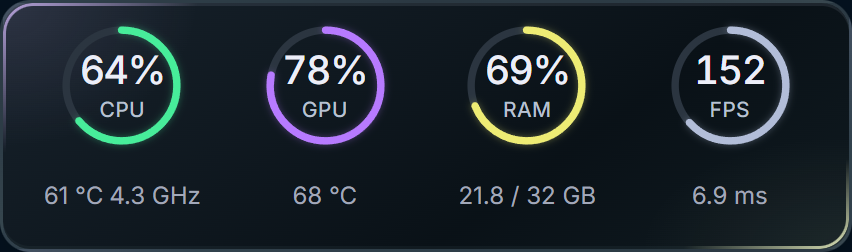
Compare FPS with CPU, GPU and RAM usage as you play.
Afterburner's framerate items
The Monitoring tab lists four framerate items. Each one you tick for the On Screen Display adds a line to the counter:
| Item | What it shows | Extra setup |
|---|---|---|
| Framerate | Frames per second right now | None |
| Frametime | How long each frame takes to draw | None |
| Framerate Avg | Average FPS over a measurement | Benchmark recording must be running |
| Framerate 1% Low | FPS of the slowest 1% of frames in a measurement | Benchmark recording must be running |
To see FPS beside CPU and GPU readings with other tools, see FPS shortcut keys for Windows 11.
FPS counter not showing? Check these first
Nothing appears in the game
Check that RivaTuner Statistics Server is running: right-click its icon in the system tray and select Show. Close Afterburner's Settings window, then press your Toggle On Screen Display key with the game in focus.
Framerate is monitored but not on screen
Ticking the checkmark only monitors an item. Select Framerate again, tick Show in On Screen Display and click Apply.
Framerate Avg or 1% Low stays empty
These update only during benchmark recording. On the Benchmark tab, assign keys to begin and end recording (MSI uses F9 and Shift + F9), click Apply and OK, then press the begin key in the game.
The counter is too small or hard to read
Open RivaTuner from More on the On Screen Display tab. Drag the Zoom slider to resize it, or turn on Display Fill to put a background behind the text.
Questions about the Afterburner FPS counter
Does MSI Afterburner show FPS by default?
No. Select Framerate in Settings > Monitoring, tick Show in On Screen Display and click Apply. RivaTuner Statistics Server, installed with Afterburner, then draws the counter in the game.
Do I need RivaTuner Statistics Server for the FPS counter?
Yes. MSI Afterburner's On Screen Display relies on RivaTuner Statistics Server (RTSS), which is offered in the same installer. Keep it running in the system tray while you play.
How do I turn the MSI Afterburner FPS counter on and off?
On the On Screen Display tab, click the Toggle On Screen Display box, press a key such as Scroll Lock and click Apply. Close the Settings window, then press that key in the game.
Why does Framerate Avg not update?
Framerate Avg and Framerate 1% Low update only while benchmark recording runs. Assign begin and end recording keys on the Benchmark tab, then press the begin key during play.
Is MSI Afterburner free?
Yes. MSI Afterburner and RivaTuner Statistics Server are free. MSI advises downloading Afterburner only from msi.com or guru3d.com, because unofficial download sites have offered modified installers.
Can I see FPS and temperatures without a graphics card tuning tool?
Yes. SysCubes is a monitoring dashboard: its Performance Monitor widget shows FPS in supported games beside CPU and GPU usage, RAM and available temperatures, and it leaves clocks and voltages as they are.
Sources and image details
Reviewed November 12, 2026. Afterburner steps, labels and the Benchmark and RivaTuner settings follow MSI's own On Screen Display walkthrough. SysCubes shortcuts and readings use the verified product specification. The product visual is a production component rendered with sample data, not a live game capture.