
Start with the performance widget
- Open SysCubes and add the Performance Monitor widget to your layout.
- Move and resize the widget so it is easy to read without covering your work.
- For a supported game, choose the game’s profile and enable its performance overlay. Lock the widget when you want clicks to pass through.
A second monitor is another useful place to keep your stats visible. Your layout and per-game settings are saved locally by SysCubes.
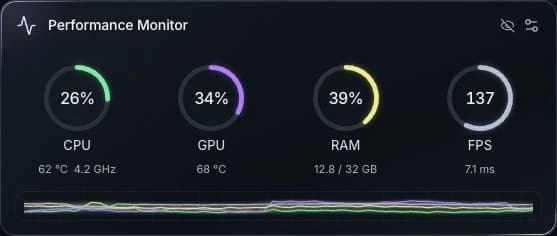
Read your stats in context
CPU and GPU
Usage percentages show how busy your processor and graphics card are. Temperature readings appear when supported sensors are available. Compare what you see with the task you are running rather than judging your PC by one number.
Memory and frame rate
RAM shows memory use alongside the total available. Game FPS and frame time appear when Overwolf can provide readings for the running game. The history graph helps you notice changes over time.
SysCubes is a monitoring tool. It does not overclock your hardware or automatically change your system settings.
When a reading is unavailable
Hardware sensors and game FPS depend on your PC and game. A missing integration stays unavailable rather than displaying an invented value. Check your setup and the supported game integration first.
For temperature readings, review sensor availability on your Windows PC. For game FPS, make sure a supported game is actually running. Visit Support for the next steps.