
FPS Counter on Windows 11: Shortcut Keys to Show FPS
Fastest built-in way: press Windows + G, open Performance and pin the FPS readout. Below are the other FPS shortcut keys, fixes for a counter stuck on '--', and a free overlay that shows FPS beside your PC's temperatures.
Option 1: Windows Game Bar
Game Bar is the gaming overlay included with Windows 11.
Shortcut & permissions Built into Windows 11 (Windows + G), but the FPS readout may ask for access, need a restart, or get stuck on '--'.
- In your game, press Windows + G. Open Widget menu, then Performance and FPS.
- If Request access appears, follow its prompts and restart your PC. Reopen the game and Game Bar.
- Select Pin, then press Windows + G to keep FPS visible while playing.
Counter stuck on '--', or want CPU and GPU temperatures beside FPS? See option 4: one hotkey for FPS and temps
Option 2: Steam
Steam is a PC game launcher. Its counter needs Steam installed and your game launched through it.
Game support Requires a game launched through Steam that supports the Steam overlay.
- In Steam, open Settings, then In Game. Turn on Enable the Steam Overlay while in-game.
- Set the performance monitor to a screen corner and Single FPS Value. Close Settings and launch your game through Steam.
Option 3: NVIDIA or AMD overlay
The NVIDIA app and AMD Software: Adrenalin Edition each include an FPS overlay with its own shortcut key.
Graphics card Uses your graphics driver app, so it only works with that brand's GPU.
- NVIDIA: press Alt + Z, open Statistics and make sure FPS is included. Then press Alt + R in game to show or hide it.
- AMD: press Ctrl + Shift + O to show or hide the metrics overlay. Choose the metrics in AMD Software under Performance > Metrics.
Option 4: SysCubes Recommended

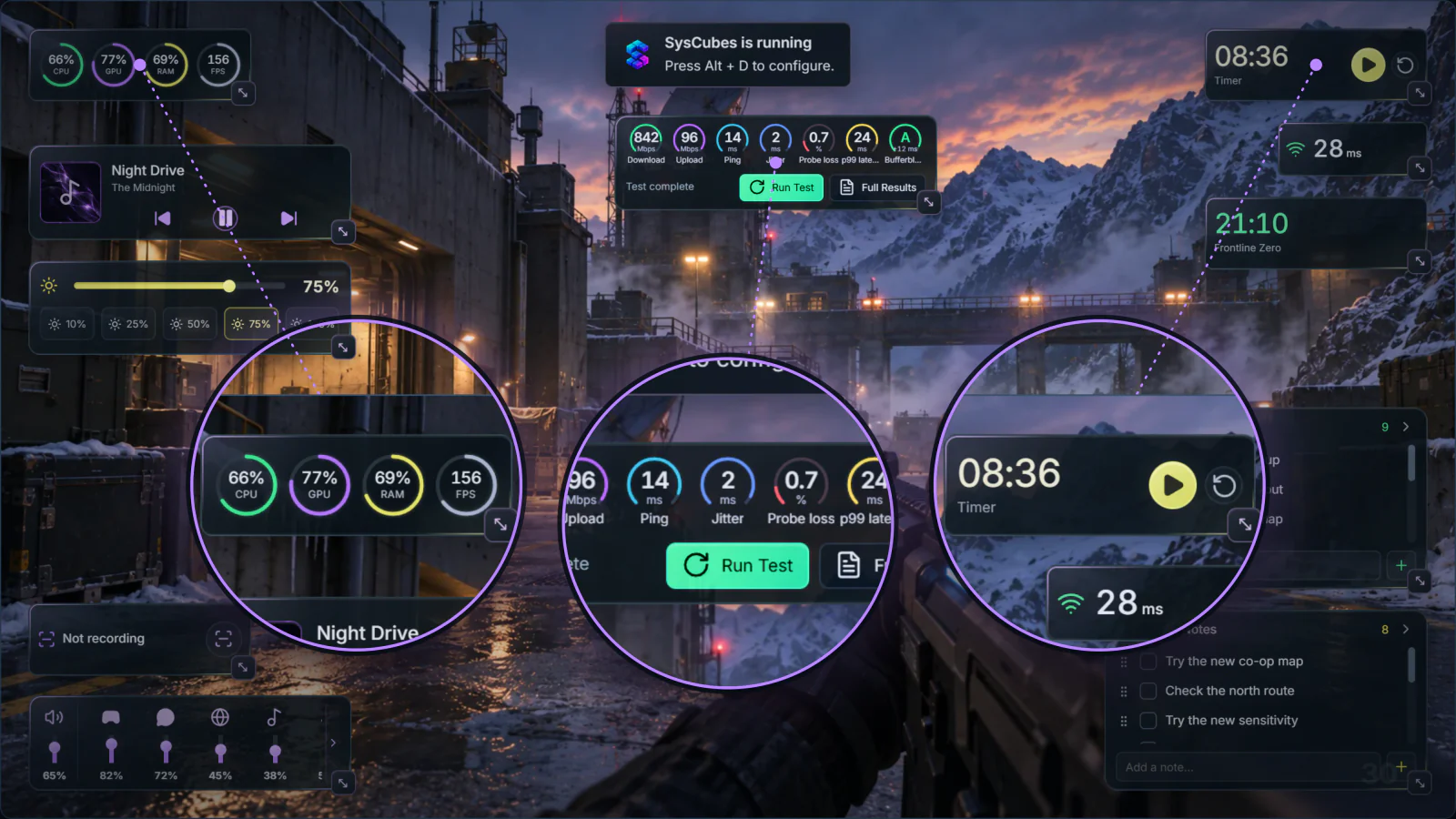
SysCubes is a free Windows app that shows FPS in supported games beside CPU, GPU and RAM usage and available temperatures, in an overlay you show or hide with one hotkey.
One hotkey Alt + O shows or hides your widgets by default and can be rebound. It doesn't rely on Game Bar's access prompt; CPU temperature needs a one-time optional sensor step.
- Install and open SysCubes, then launch a supported game.
- Press Alt + O to show your widgets, including Performance Monitor with FPS beside CPU, GPU and RAM.
- Optional: rebind the shortcut in SysCubes Hotkeys settings, or unlock CPU temperature in the Performance widget.
See what changes with FPS
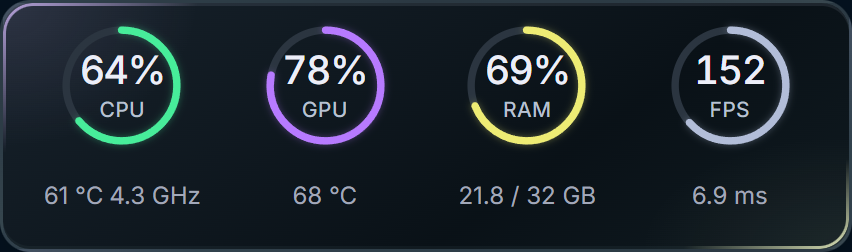
Compare FPS with CPU, GPU and RAM usage as you play.
FPS shortcut keys for Windows 11 at a glance
There is no single Windows key that shows FPS in every game. Each overlay has its own default shortcut:
| Tool | Show FPS | Hide FPS | What you see | Works with |
|---|---|---|---|---|
| Xbox Game Bar | Win + G, then pin Performance | Win + G, then unpin | FPS plus CPU, GPU, VRAM and RAM usage | Windows 10 and 11 |
| Steam | Set the counter in Settings > In Game | Set the counter to Off | FPS, with more detail at higher levels | Games launched through Steam |
| NVIDIA app | Alt + R (after Alt + Z > Statistics) | Alt + R | FPS and GPU statistics | NVIDIA graphics cards |
| AMD Software | Ctrl + Shift + O | Ctrl + Shift + O | FPS and GPU metrics | AMD Radeon graphics |
| SysCubes | Alt + O (rebindable) | Alt + O | FPS beside CPU, GPU, RAM and available temperatures | Overwolf-supported games; desktop dashboard for readings |
Defaults checked against each app's documentation on November 8, 2026. For all SysCubes shortcuts, see the SysCubes hotkey reference.
FPS counter missing? Setup help
Steam’s counter does not appear
Check that your game supports the Steam overlay. In Steam’s Library, open the game’s Properties, then General, and enable Enable the Steam Overlay while in-game. Start the game through Steam again. For more context, higher performance detail levels can also show CPU, GPU and RAM information.
Game Bar doesn’t open or show FPS
Get or update Game Bar in Microsoft Store. If Request access still appears after setup, request access again and restart your PC. You may need an administrator’s help to grant access. For a pinned reading that stops updating, press Windows + G over your game to refresh it.
Game Bar FPS counter stuck on '--' or asks for access
Game Bar needs access to Windows performance data before it can show FPS. Click Request access and restart your PC. If it still fails, try the NVIDIA or AMD overlay, or SysCubes, which doesn't use Game Bar's access prompt.
NVIDIA Alt + R or AMD Ctrl + Shift + O does nothing
Open the overlay first (Alt + Z for NVIDIA) and check that the statistics or metrics overlay is turned on with FPS selected. Another app may use the same shortcut; change it in the driver app's settings.
SysCubes widgets are missing
In SysCubes settings, open Widgets and select your game. Turn on Overlay and select the Overlay checkbox for Performance Monitor. New game profiles have these enabled by default; existing settings may differ. The default Alt + O shortcut shows or hides widgets; your game’s binding may differ.
SysCubes shows a dash instead of FPS
Keep your game active. A - means no FPS sample is available, not zero FPS. Availability depends on the game providing readings; this counter does not measure the Windows desktop’s refresh rate.
Questions about FPS counters and shortcuts
What is the shortcut key to show FPS in Windows 11?
Windows 11 has no single key that shows FPS. Press Win + G to open Xbox Game Bar, then pin the Performance widget's FPS readout. NVIDIA's overlay uses Alt + R, AMD's uses Ctrl + Shift + O, and SysCubes shows its widgets with Alt + O by default.
Why does my Windows 11 Game Bar FPS counter show '--'?
A '--' reading usually means Game Bar doesn't have access to Windows performance data yet. Select Request access, approve it and restart your PC. If it still shows '--', use your GPU driver's overlay or SysCubes, which reads FPS in supported games without Game Bar's access step.
How do I turn off the FPS counter in Windows 11?
Turn it off in the tool that shows it. For Game Bar, press Win + G and unpin the Performance widget. For Steam, set the in-game performance monitor to Off. Press Alt + R again for NVIDIA, Ctrl + Shift + O again for AMD, or Alt + O to hide SysCubes widgets.
Can I see CPU and GPU temperatures together with FPS?
Yes, with a tool that reads hardware sensors. SysCubes shows FPS in supported games beside CPU and GPU usage, RAM and available temperatures. CPU temperature needs a one-time optional sensor step.
Is FPS the same as my monitor’s refresh rate?
No. FPS is how many frames your game produces per second. Refresh rate, measured in Hz, is how often your display updates.
Does showing FPS increase it?
An FPS counter reports performance; turning it on does not itself make the game run faster.
Can I see FPS from before the counter was running?
These steps display current FPS, not a saved benchmark. They cannot reconstruct readings that were never collected.
Sources and image details
Windows, Steam, NVIDIA and AMD steps checked against their official documentation on November 8, 2026. SysCubes instructions and default shortcuts use the verified product specification. The top scene is fictional artwork; the production widget uses sample data, not live-game measurements.
- SysCubes: Hotkey Reference
- SysCubes: Performance Monitor Feature
- SysCubes: Xbox Game Bar Alternative Comparison
- SysCubes: RTSS Alternative Comparison
- Valve: In-Game Overlay Performance Monitor
- Valve: Enabling the Steam Overlay
- Microsoft: Track your PC’s performance with Game Bar
- Microsoft: Customize Game Bar on Windows devices
- AMD: Performance metrics overlay hotkeys (DH3-038)
- NVIDIA: NVIDIA app
- SysCubes support