
Second Screen Setup for PC Gaming: Monitor or Phone
Keep your PC stats, volume and music beside the game, on a second monitor or on your phone.
Option 1: Extend Windows to a second monitor
Windows can treat a second monitor as extra desktop space, so the game stays on one screen while other windows sit on the other.
- Connect the monitor and turn it on. Press Win + P and select Extend; Duplicate only mirrors the same picture.
- In Settings, open System and Display, then drag the screens to match your desk. Use Identify to see which is which.
- Move a window to the other screen by dragging its title bar, or press Win + Shift + Left or Win + Shift + Right.
This gives you space, not stats: you still need an app to show readings and controls on that screen.
Option 2: SysCubes dashboard or phone companion Recommended
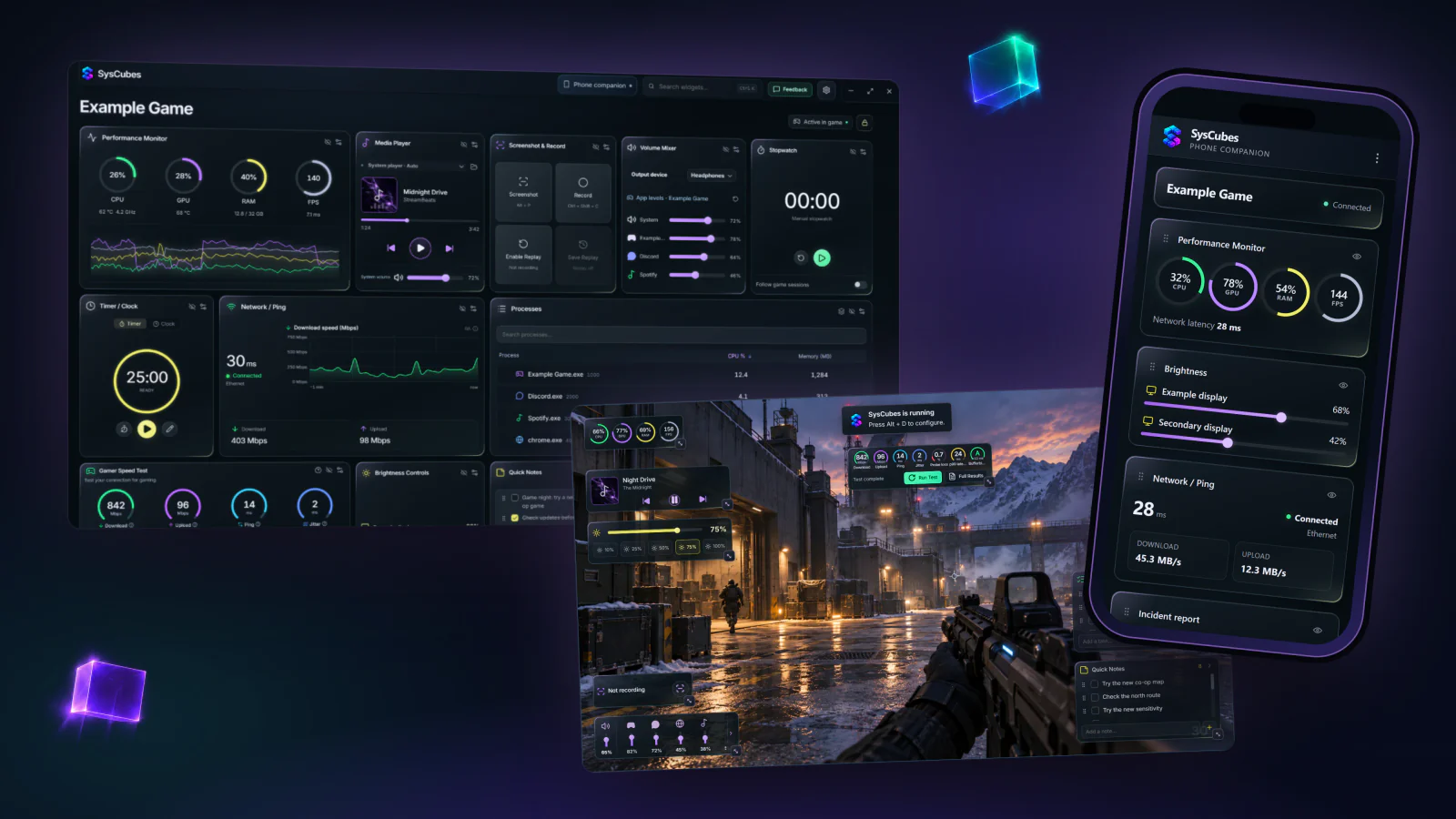
SysCubes is a free Windows app for Overwolf. Its dashboard shows performance, volume, music and notes on your second monitor, and its phone companion puts selected controls in your phone's browser with no phone app to install.
Phone on the same network The phone companion needs the phone and PC on the same trusted local network. A guest network or VPN can block it.
- For a monitor: drag the SysCubes dashboard to the second screen and maximize it. Turn on Open dashboard on game launch in General settings to place it there automatically.
- For a phone: select Phone companion in the app header, scan the QR code with your phone and confirm Connected on the PC.
PC controls in your phone's browser
Dashboard won't fit or the phone won't connect? Check these first
The dashboard does not fit the screen
The desktop dashboard needs at least 960 by 750 pixels of usable space. Lower the display scaling for that monitor, or use the phone companion as a smaller control surface.
The phone cannot open the page
Make sure both devices are on the same private network, not a guest network, and turn off VPNs or client isolation for the test. Use the address currently shown on the PC, not an old one.
The pairing code expired
A pairing code lasts five minutes. Select Try again on the PC for a new one. For other connection problems, see phone companion troubleshooting.
FPS or temperatures are missing
A second screen shows only what the PC provides. Game FPS needs a supported running game, and temperatures need available sensors. For CPU readings, follow the temperature sensor setup.
Comparing phone control apps
If you already use a phone button deck, see how the browser-based phone companion compares in Stream Deck Mobile alternative.
More questions about second-screen setups
Can I use my phone as a second monitor for my PC?
The SysCubes phone companion is a control panel, not an extra Windows desktop. It shows selected stats and controls such as volume, music and timers. Use a physical monitor if you need room for other Windows apps.
Does the phone companion need an app or account?
No. It runs in the phone's browser on your local network while SysCubes runs on the PC. The local connection is not encrypted, so use a trusted network and keep the pairing details private.
Will a second screen lower my FPS?
It can, depending on the displays, graphics card and what runs on the second screen. Compare the same game scene before and after adding the dashboard, and add widgets one at a time.
Related guides and tools
Sources and verification
Reviewed November 8, 2026. Windows steps follow Microsoft's documentation; SysCubes details come from product documentation for the current Windows build.