
Getting Started with SysCubes: Your First Dashboard
Install SysCubes on Windows, build a first dashboard with the tools you will actually use, and check that it works before you add more.
Step 1: Build your first dashboard Start here
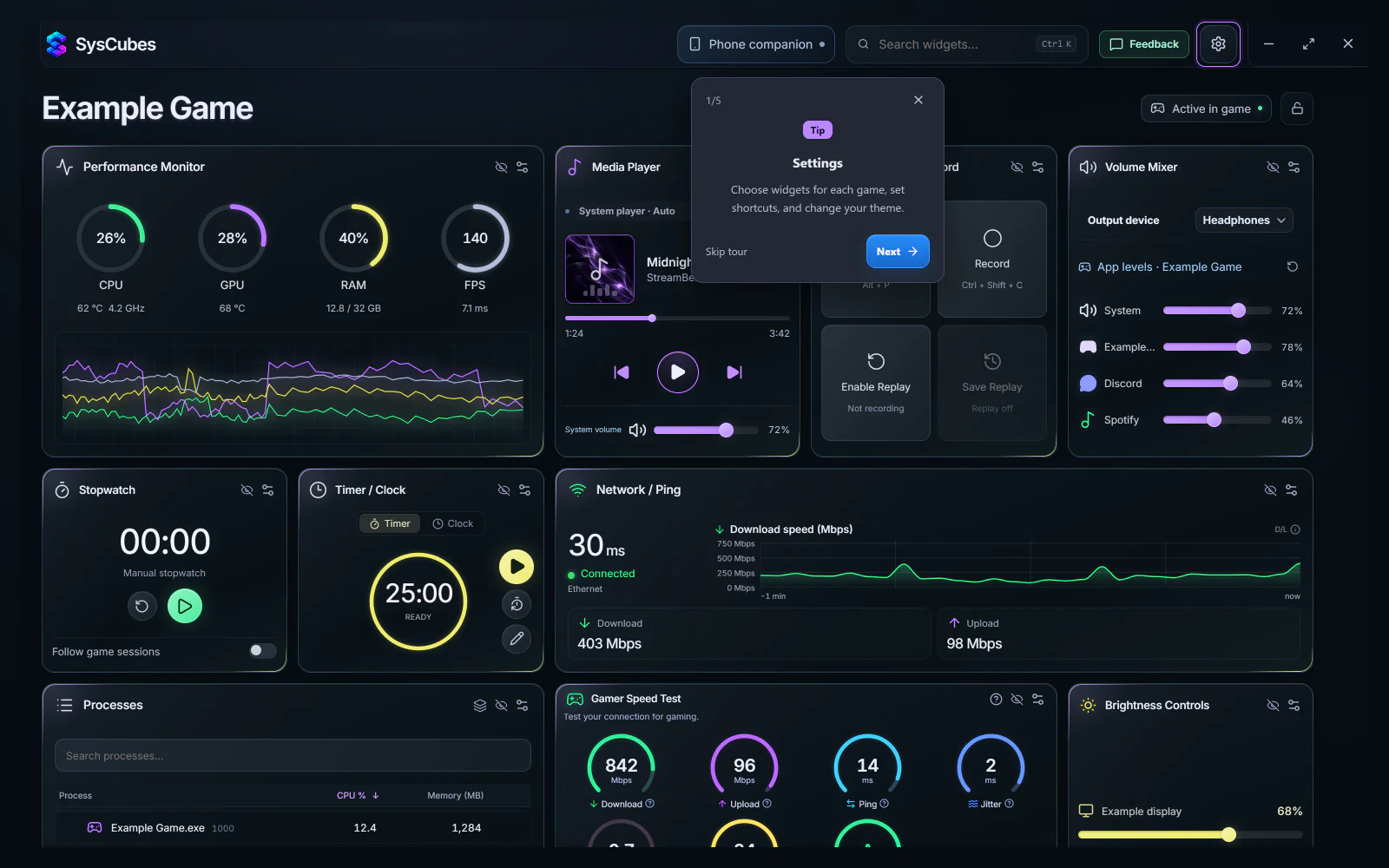
SysCubes is a free Windows app for Overwolf that brings performance readings, app volume, music, notes and timers into one dashboard. Start small: two widgets and one action you can check.
Requirements Windows 10 1809 or later, or Windows 11, with Overwolf. In-game overlays and capture also depend on the game's Overwolf support.
- Download SysCubes and open it through Overwolf. Let the dashboard finish loading; the first-launch tour shows Settings, widgets and the Phone companion.
- In Settings, keep Performance Monitor and one control you use often, such as Volume Mixer, Timer or Quick Notes.
- Try one action, such as adding a note or starting a short timer. Then unlock the dashboard, move the widgets where you can read them, and lock it again.
A dashboard built from widgets you choose
Where to put SysCubes next
Once the first dashboard works, add one more surface at a time.
| Surface | Best for | How to start |
|---|---|---|
| Second monitor | Keeping the full dashboard beside the game | Drag the dashboard window to the other screen |
| In-game overlay | A few widgets on top of a supported game | Enable the game's profile, then press Alt + O |
| Phone companion | Volume, music, timer and capture controls in a browser | Select Phone companion and scan the QR code |
Alt + O shows or hides overlay widgets in new game profiles; saved profiles may use other keys.
Something missing? Check these first
Which widgets can go in the overlay?
The current build has 13 dashboard widgets. Performance, media, brightness, volume, timer, network, capture, stopwatch, notes and to-do can also appear in the in-game overlay; calculator, incident reporting and processes stay on the dashboard.
Default in-game shortcuts
New game profiles use Alt + O to show or hide overlay widgets, Alt + D for the in-game dashboard and Ctrl + Shift + M for interaction mode. Check the active game's profile if a key does nothing.
A reading or control is unavailable
Temperature sensors, monitor brightness, media sessions and game capture each have their own requirements. Use a note or timer to confirm the dashboard works, then follow SysCubes troubleshooting for the specific missing source.
More questions about getting started
Is SysCubes available to download?
Yes. SysCubes for Windows is available to download via Overwolf from the download page.
Which widgets should I start with?
Start with the two you will actually use, such as Performance Monitor and Volume Mixer, and one action you can check. Add more once the first layout works.
Do layouts change between games?
The desktop arrangement is shared across games. Each game profile can choose which dashboard widgets appear and keep its own overlay positions.
Sources and verification
Reviewed November 8, 2026. Widget, shortcut and requirement details come from SysCubes product documentation for the current Windows build.