
How to Change Volume In-Game Without Alt-Tab
Three ways to turn one app up or down, such as your game, a voice call or music, while the game stays on screen: two that are built into Windows and one overlay with a slider for each sound source.
Option 1: Windows Game Bar
Game Bar is the gaming overlay included with Windows 10 and 11. Its Audio widget lists the apps that are playing sound, each with its own slider.
Opens over the game The sliders are available while Game Bar is open. Press the same shortcut again to return to the game.
- While the game is running, press Win + G to open Game Bar.
- Find the Audio widget. If it is not on screen, open it from the Widget menu on the Game Bar toolbar.
- Drag the slider of the app you want to change, or select its speaker icon to mute it.
- Press Win + G again to go back to the game.
Game Bar must be turned on in Windows Settings, under Gaming. An app is listed once it has started playing sound.
Option 2: SysCubes Recommended

SysCubes is a free Windows app with a volume mixer you keep inside the game as an overlay: one slider each for your game, chat, browser and music. It runs through Overwolf, in the games Overwolf supports.
Levels saved per game SysCubes remembers the levels you set while a game is running and restores them the next time you play it.
- Install SysCubes. In your game's profile, tick Overlay for the Volume Mixer widget.
- In the game, press Alt + O to show your widgets. If the game hides the mouse pointer, press Ctrl + Shift + M to get one.
- Drag a slider, then press Esc to hand control back to the game.
One slider per sound source, inside the game
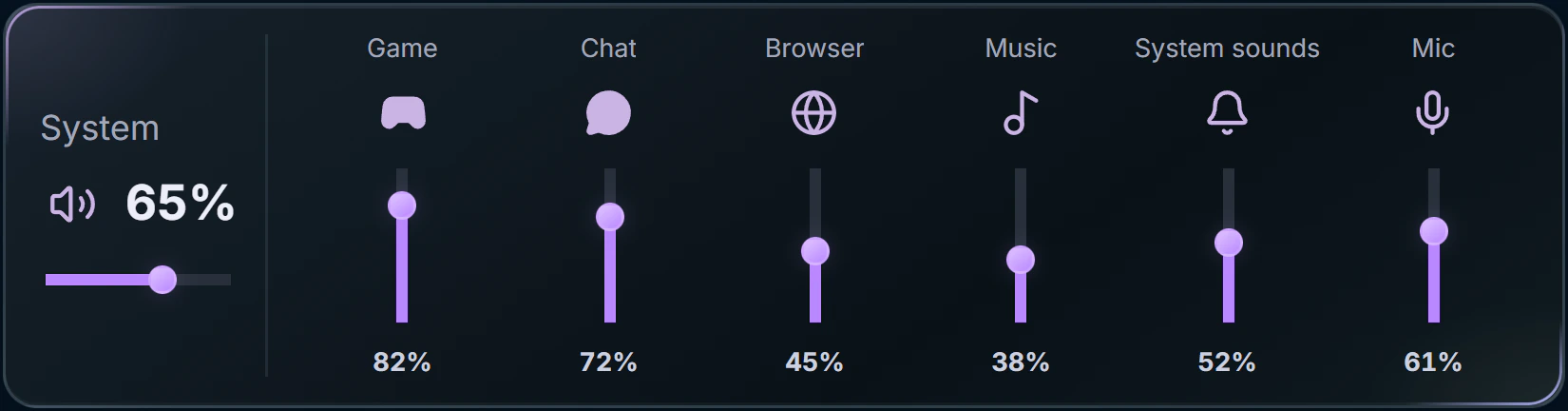
Lower music or a voice call while the game keeps its own level.
Option 3: Windows 11 volume panel
Windows 11 has a quick sound panel with a volume mixer: a slider for each app that is playing sound. One keyboard shortcut opens it from anywhere in Windows.
Windows 11 only The shortcut is part of Windows 11. On Windows 10, use Game Bar.
- Press Win + Ctrl + V. The sound panel opens with your output device and the volume mixer.
- Under Volume mixer, drag the slider of the app you want to change.
- Press Esc or click the game to close the panel.
App missing or the game minimized? Check these first
The app is not in the list
Windows lists an app once it plays sound. Start a track, a call or the game's audio, then look again.
The game minimized when the panel opened
Some games in exclusive full-screen mode switch to the desktop when a Windows panel opens. Set the game to borderless or windowed full screen in its video settings and try again.
One person in Discord is too loud
An app slider changes Discord as a whole. To change a single person, use that person's volume setting inside Discord.
An app is missing from the SysCubes mixer
Check that the app plays through your default Windows output, then follow how to find a missing app in the volume mixer.
Shortcuts, Discord and saved levels
What is the shortcut for the volume mixer in Windows 11?
Press Windows key + Ctrl + V. It opens the sound page of Quick Settings, which has the output device, spatial sound and a volume mixer with a slider for each app that is playing sound.
How do I lower Discord without lowering my game?
Change Discord's own slider instead of the main volume. Game Bar's Audio widget, the Windows 11 volume panel and the SysCubes Volume Mixer each list chat separately from the game once both are playing sound.
Can I change volume in a full-screen game without minimizing it?
Yes. Game Bar and the SysCubes overlay are drawn on top of the game, so it stays on screen while you move a slider. The SysCubes overlay works in games supported by Overwolf.
Will my levels be the same the next time I play?
With SysCubes, yes. It saves the levels you set while a game is running and restores them when you play that game again.
Sources and verification
Reviewed November 10, 2026. The Windows 11 shortcut follows Microsoft's keyboard shortcut list and the Windows Insider announcement of the Quick Settings volume mixer. Game Bar steps follow current Windows behavior. SysCubes shortcuts (Alt + O, Ctrl + Shift + M) and saved levels use the verified product specification. The top image is conceptual artwork.