
CS2 FPS boost guide: competitive settings, frametimes & custom crosshair
Direct Answer: For optimal CS2 performance, run 1080p or 4:3 stretched, set Global Shadow Quality to High (for enemy shadows), Model/Texture to Medium, disable FSR, and enable NVIDIA Reflex On + Boost. Use SysCubes for VAC-safe custom crosshair overlays and live 1% low tracking.
Option 1: Optimal Source 2 Video Settings
Counter-Strike 2 uses Valve's Source 2 engine, which shifts significantly more lighting and particle rendering to the GPU compared to CS:GO.
Visibility vs FPS Keeping player shadows High preserves competitive awareness around corners while dropping particle effects boosts 1% low frametimes.
- In CS2 Video Settings, set Global Shadow Quality to High (critical for seeing enemy shadow projections before they peek).
- Set Model / Texture Detail and Shader Detail to Low.
- Set Particle Detail to Low to prevent massive frame drops inside Molotov smoke.
- Disable FidelityFX Super Resolution (FSR) (keep Disabled / Highest Quality) to avoid blurry reticles and player silhouettes.
Option 2: NVIDIA Reflex & Sub-Tick Responsiveness
NVIDIA Reflex synchronizes CPU frame dispatch directly with GPU rendering passes, keeping system queue latency under 10ms.
Input responsiveness Reflex On + Boost keeps GPU clock speeds elevated even during quiet rounds, eliminating sudden input delay when enemies appear.
- Navigate to CS2 Advanced Video Settings and set NVIDIA Reflex Low Latency to Enabled + Boost.
- In your launch options, remove outdated CS:GO commands (such as
-highor-threads) which interfere with Source 2's native thread pool. - Cap in-game FPS slightly above your refresh rate (e.g. 240 or 360 FPS) to maintain consistent frametimes.
Option 3: Optimize CS2 Audio & Voice Buffers
Audio packet buffer delays in CS2 can trigger subtle micro-stutter when multiple teammates speak in voice chat simultaneously.
Voice buffer consistency Setting Streamlined Push to Talk prevents microphone capture lag spikes during firefights.
- In CS2 Audio Settings, turn Streamlined Push to Talk to Yes.
- Set EQ Profile to Crisp for enhanced directional footstep clarity.
- Set Perspective Correction to Yes to improve spatial awareness in headphone mode.
Option 4: SysCubes Custom Crosshair & Frametime HUD Recommended Competitive Overlay

SysCubes provides a 100% VAC-safe custom crosshair overlay and real-time frametime tracking for CS2, helping you spot micro-stutters and keep steady crosshair placement across all weapons.
100% VAC Whitelisted Custom crosshair reticles and live FPS/frametime monitoring certified via Overwolf with zero risk of Valve Anti-Cheat flags.
- Download SysCubes free for Windows via Overwolf.
- Activate the Custom Crosshair Overlay to configure a custom reticle that stays visible through smoke and flashes.
- Press Alt + O in CS2 to monitor live 1% low frametimes and hardware temperatures without heavy background tools.
Competitive crosshair & telemetry
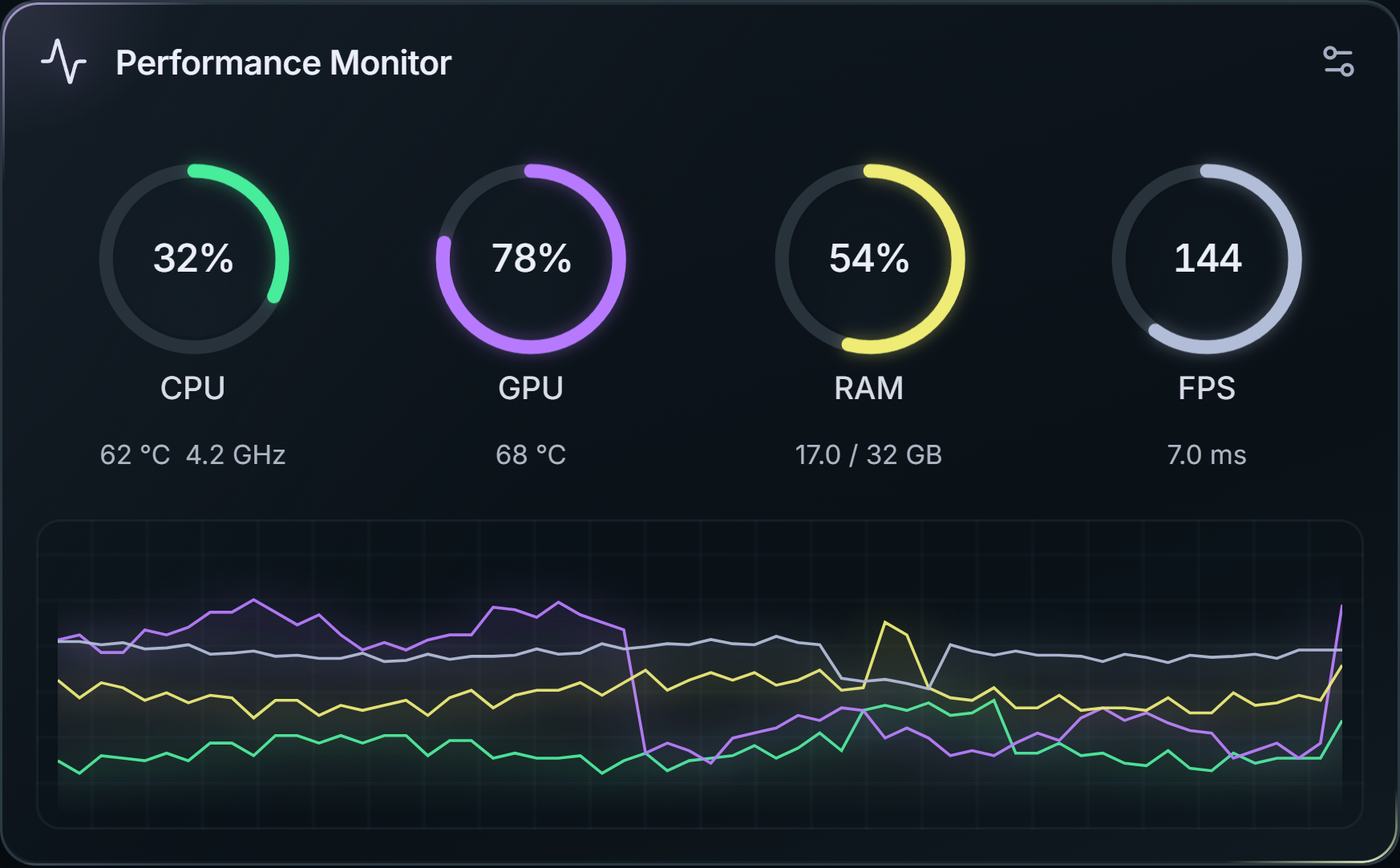
Track sub-tick frame pacing and maintain perfect crosshair visibility in Counter-Strike 2.
Troubleshooting Counter-Strike 2 performance and stutter
Why does CS2 stutter despite high FPS?
CS2 micro-stutter is usually caused by shader compilation hitches or frametime variance rather than raw framerate. Enabling NVIDIA Reflex and capping FPS prevents sudden frametime spikes.
Is 4:3 stretched better for FPS in CS2?
Yes. Playing in 4:3 stretched (e.g. 1280x960) reduces total pixel fill-rate by ~33% compared to 1080p, boosting framerates by 15-25% while making enemy character models appear wider.
Is an external crosshair overlay allowed in CS2?
Yes. SysCubes renders its custom crosshair overlay in a separate desktop layer via Overwolf without touching game memory or game files, making it 100% safe and compliant with Valve Anti-Cheat (VAC).
Frequently asked questions about Counter-Strike 2 performance
What are the best launch options for CS2?
Modern CS2 needs minimal launch options. In Steam, use '-novid' to skip the intro video. Avoid outdated CS:GO commands like '-high' or '-threads', as Source 2 manages thread scheduling automatically.
Should I turn VSync ON or OFF in CS2?
Turn VSync OFF in CS2 to minimize mouse input latency. If you use G-Sync or FreeSync, enable G-Sync in your GPU driver and cap your frame rate 3-4 FPS below your monitor's maximum refresh rate.
How does SysCubes help CS2 players?
SysCubes provides an in-game volume mixer (Alt + V) to easily balance Discord voice against quiet game footsteps, plus a VAC-safe custom crosshair overlay and 1% low frametime monitoring.
Why does smoke grenade drop FPS in CS2?
Volumetric smokes in Source 2 are dynamic 3D voxel objects illuminated by world lighting. Setting Particle Detail to Low significantly reduces the GPU rendering load inside and around smokes.
Related guides and tools
Sources and technical guides
Official documentation from Valve Corporation and NVIDIA regarding Counter-Strike 2 performance.