
What are 1% lows and frametimes: why games stutter at high FPS
Direct Answer: Average FPS hides stutter because it averages all frames over an entire second. 1% Low FPS represents the average of the slowest 1% of frames, directly exposing micro-stutters and frame-pacing hitches. Monitor live FPS and frame budget ms with SysCubes.
Option 1: Average FPS: The Headline Number
Average FPS simply counts the total number of frames rendered during one second. It provides a rough baseline of your system's overall graphic throughput.
What it hides A game can render 119 fast frames in 500ms and freeze for 500ms on the 120th frame. The average still reports '120 FPS', yet the freeze is glaringly jarring to the player.
- Use average FPS to gauge whether your graphics settings match your hardware capabilities.
- If the game reports high FPS but feels choppy or hitchy, do not rely on average FPS alone.
- Look to 1% low metrics and frametime graphs to discover the root cause of stutter.
Option 2: 1% Lows & 0.1% Lows: True Smoothness
1% Low FPS isolates the slowest 1% of frames during a gaming session. If your average is 144 FPS but your 1% low is 40 FPS, you will feel frequent micro-stutters.
Consistency metric A game with 90 FPS average and 85 FPS 1% low feels significantly smoother than a game with 140 FPS average and 35 FPS 1% low.
- Compare your 1% low value against your average FPS.
- A healthy gaming system maintains 1% lows within 70% to 80% of its average FPS.
- If 1% lows drop below 50% of the average, investigate background disk activity, RAM paging, or shader compilation.
Option 3: Frametimes: Delivery in Milliseconds
Frametime measures the exact duration in milliseconds that each individual frame takes to render and reach the display. At 60 FPS, a frame ideally takes 16.6ms; at 144 FPS, 6.9ms.
Flat line vs spikes A smooth game displays a flat frametime graph. Any sudden vertical spike (e.g. jumping from 7ms to 45ms) represents an instant micro-stutter.
- Calculate ideal frame budget: divide 1,000 by your target FPS (e.g., 1000 / 144 = 6.94 ms).
- Observe frame delivery during combat and fast camera turns.
- Spikes that coincide with stutter pinpoint shader compilation, asset loading, or CPU thread contention.
Option 4: SysCubes Performance Monitor Recommended HUD

SysCubes is a free Windows gaming HUD that displays live FPS alongside derived frame budget milliseconds (1,000 / FPS) and CPU/GPU temperatures to keep you informed in real time.
In-game HUD Track your frame budget and hardware temperatures in real time without heavy overclocking tools or background bloat.
- Download SysCubes free for Windows via Overwolf.
- Press Alt + O in game to toggle the Performance Monitor overlay.
- Observe live FPS and frame time ms values beside your CPU and GPU temperatures to verify display stability.
Track frame pacing stability
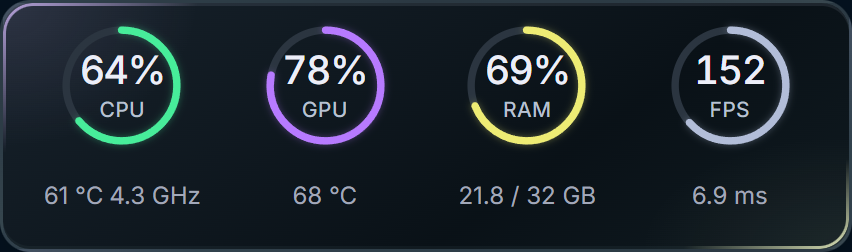
Watch live FPS and frame budget in milliseconds as you game.
Fixing micro-stutters and frame pacing issues
What causes 1% low drops?
Common causes include shader compilation in Unreal Engine games, running out of VRAM, aggressive CPU thermal throttling, or background Windows updates.
How can I improve my 1% low FPS?
Enable XMP/DOCP in BIOS for higher RAM bandwidth, install games on an NVMe SSD, close memory-heavy browser tabs, and cap your maximum frame rate slightly below your GPU ceiling to prevent queue congestion.
Why does capping FPS reduce stutter?
Capping FPS slightly below your system's maximum output prevents your GPU from reaching 100% utilization, maintaining consistent frame delivery and reducing input latency spikes.
Frequently asked questions about frametimes and 1% lows
Why does my game feel laggy even with 140 FPS?
Your average FPS can be high while erratic frame delivery causes uneven frame pacing. If individual frames take 30ms or 40ms to arrive between rapid 5ms frames, your eyes perceive this variance as hitching and stutter.
What is the difference between 1% low and 0.1% low?
1% Low averages the worst 1% of frames to reflect general frame-pacing smoothness. 0.1% Low averages the single worst 0.1% of frames, highlighting severe intermittent spikes such as sudden asset loads or game freezes.
How does SysCubes calculate frame time?
SysCubes displays the average frame budget calculated as 1000 divided by the reported live FPS (e.g. 10ms at 100 FPS), giving you an immediate visual cue of performance scale beside CPU/GPU temperatures.
Does SysCubes add input lag or CPU overhead?
No. SysCubes is engineered with under 0.5% CPU overhead, ensuring that running the HUD overlay has zero negative impact on your 1% lows or game responsiveness.
Related guides and tools
Sources and technical references
Industry standards for frametime analysis and frame pacing.