Precision Center Dot
A 2px to 8px crisp center dot. Ideal for hardcore FPS modes, tactical shooters like CS2 and Valorant, and games with distracting dynamic weapon bloom.
 SysCubes
Custom Crosshair Overlay
SysCubes is a free Windows app that adds a crosshair widget to your game overlay. Choose a dot, cross or circle, set its color, size and opacity, then lock it so clicks pass straight through to the game. It works in Overwolf-supported games and shows or hides with your overlay hotkey.
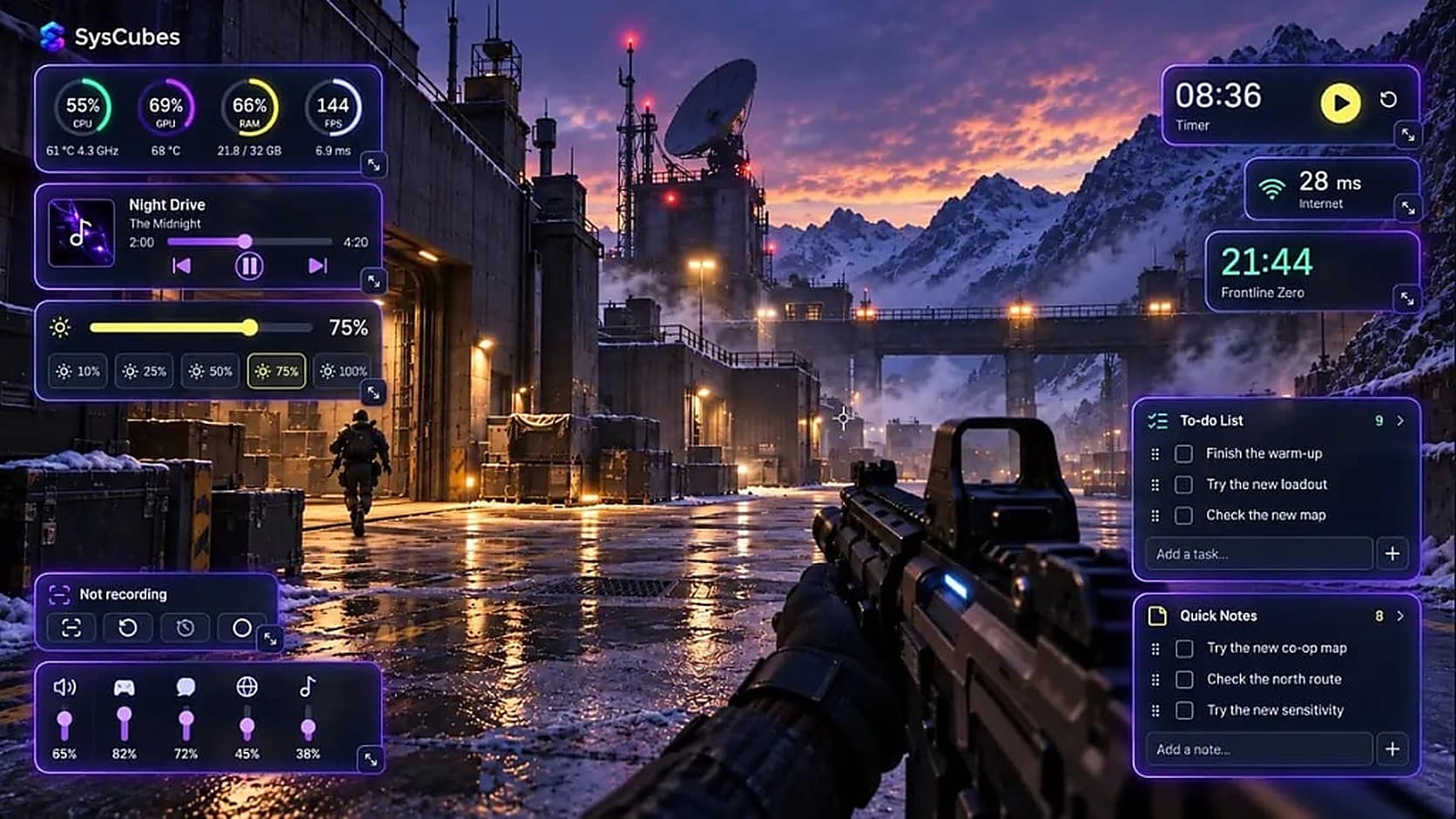
Customize your crosshair shape, color, and size above. See how it renders with crisp edges against dark and illuminated scenes.
Quick answer
Some games hide or expand the crosshair while you move, and hardcore modes can remove the HUD entirely. A fixed center reference keeps your aim point visible. SysCubes adds one as a free overlay widget you can style, lock and show or hide with a hotkey, in Overwolf-supported games.
Reticle Library
A 2px to 8px crisp center dot. Ideal for hardcore FPS modes, tactical shooters like CS2 and Valorant, and games with distracting dynamic weapon bloom.
Classic crosshair with customizable gap, line thickness, and length. Stays completely steady while sprinting, jumping, or hip-firing.
Great for quick shotgun flick shots, melee targeting in survival games, and third-person shooters where default reticles are too wide.
Side-by-Side
Compare customizability, visual sharpness, hotkey convenience, and game alignment.
| Feature | SysCubes | Monitor Built-in OSD Crosshair |
|---|---|---|
| Reticle styles | Dot, cross and circle with adjustable size. | Usually a few fixed shapes. |
| Color & opacity | Choose the color and opacity that stays visible in your game. | Usually a few fixed colors. |
| Show / hide shortcut | Yes. Alt+O shows or hides your overlay widgets (rebindable). | Usually changed through the monitor's menu buttons. |
| Where it runs | Overwolf overlay in supported games; check each game's rules for competitive play. | Drawn by the monitor itself, outside the game. |
| Price & account | Free Windows app via Overwolf. No account or subscription. | Only on monitors that include an OSD crosshair. |
Before ranked play
SysCubes draws the crosshair as a widget in the Overwolf overlay. It doesn't change the game's files or settings, and it only appears in games that Overwolf supports.
Rules differ by game, league and tournament. Some competitive games and events don't allow third-party crosshairs at all, even when the software itself is permitted. Read your game's rules and anti-cheat guidance before using any crosshair overlay in ranked or tournament play, and see the SysCubes system requirements for game support.
Step-by-Step
Install SysCubes via Overwolf. Launch the app and click the Overlay tab in your command center.
Select the Crosshair tile from your widget drawer and drop it onto your gaming overlay canvas.
Select your preferred dot or cross shape, adjust the size to match your game's weapon spread, and pick high-contrast mint or cyan.
Toggle Click-Through Lock so mouse clicks pass straight through. Press Alt+O, or your own binding, to show or hide your overlay widgets.
Game Profiles
SysCubes game profiles keep a separate widget layout for each supported game, so the crosshair can be on in one game and off in another:
• Rust & DayZ: Keep a precise center dot active while holding bows, spears, and hip-firing without weapon sights.
• Counter-Strike 2: Maintain a fixed center dot that never expands during recoil, helping you master spray control patterns.
• Call of Duty & Warzone: Center your vision while tactical sprinting so your gun is already on target before you ADS.
• Escape from Tarkov & Squad: Gain a steady spatial anchor in hardcore shooters that omit on-screen crosshairs completely.
Documentation
How the Overwolf in-game overlay works and where it is supported.
Technical specification for WS_EX_TRANSPARENT and zero-latency click-through compositing.
Your questions, answered
SysCubes draws the crosshair as an overlay widget through Overwolf and does not change the game's files or settings. Rules still differ by game: some competitive games, leagues and tournaments don't allow third-party crosshairs. Check your game's rules and anti-cheat guidance before using one in ranked or tournament play.
Place the crosshair widget at the center of the display your game runs on, then lock it. Check the alignment against the game's own crosshair in a practice range or training mode before you play, and adjust the widget if the game's aim point is slightly off-center.
Not when Click-Through Lock is on. Mouse clicks pass through the locked widget to the game, so the crosshair doesn't take focus away from your game window.
Yes. The SysCubes overlay shortcut, Alt+O by default, shows or hides your overlay widgets, including the crosshair. You can rebind it in SysCubes Hotkey settings, for example to a key you don't use in game.
A monitor's built-in crosshair usually offers a few fixed shapes and colors and is changed through the monitor's menu buttons. SysCubes lets you choose the shape, color, size and opacity on screen and show or hide it with your overlay hotkey. It's free and works with any monitor.
The crosshair appears in the overlay of the display that runs your supported game, including ultrawide screens. Center the widget on that display and lock it; your other monitors stay free for the SysCubes desktop dashboard.
Download SysCubes for Windows via Overwolf. Launch the app, enable the Crosshair widget in your overlay layout, pick your preferred reticle shape and color, and launch your favorite game. No account creation or payment is required.
Your PC. In your hands.
Download SysCubes free for Windows via Overwolf and place a custom dot, cross or circle in your supported game's overlay.
Free • No credit card or account needed • Instant 1-minute setup • Windows 10/11