
What is VSync in games: when to use it and how to fix screen tearing
Direct Answer: VSync synchronizes your GPU's frame render rate with your monitor's refresh rate to eliminate horizontal screen tearing. Turn VSync OFF in competitive shooters (Valorant, CS2) to avoid input latency, or ON in single-player titles without G-Sync/FreeSync.
Option 1: VSync Off: Maximum Responsiveness
Turning VSync off lets your graphics card push new frames to the monitor as fast as it can finish them, without waiting for the monitor's next refresh cycle.
Input latency vs tearing Gives the lowest possible input lag for fast shooters, but can produce horizontal screen tearing when frame rate and refresh rate desynchronize.
- Open your game's Video / Graphics Settings.
- Locate Vertical Sync (VSync) and set it to Off.
- If you experience tearing, cap your in-game framerate to 2-3 FPS below your monitor's refresh rate.
Option 2: VSync On: Tear-Free Display
Turning VSync on holds back the completed frame until the monitor begins its next refresh pass, guaranteeing that a frame is never drawn halfway down the screen.
Visual smoothness vs delay Completely eliminates horizontal slice lines (tearing), but adds 1-2 frames of input latency and can drop FPS to 30 on a 60Hz screen if performance stumbles.
- In your game settings, switch VSync to On.
- Enable Triple Buffering if available to prevent severe 30 FPS drops when the GPU misses a 60Hz interval.
- Test mouse responsiveness in a training range to confirm input delay feels acceptable.
Option 3: G-Sync & FreeSync: Variable Refresh Rate (VRR)
Variable Refresh Rate (VRR) changes the monitor's refresh rate dynamically to match the GPU's instantaneous frame rate, delivering both zero tearing and low latency.
The ideal balance Requires a compatible G-Sync or FreeSync monitor and DisplayPort connection, but provides the best balance of smoothness and low lag.
- In Windows Display Settings, verify your monitor's maximum refresh rate (e.g. 144Hz, 240Hz) is active.
- Open NVIDIA Control Panel or AMD Software and enable G-Sync Compatible or AMD FreeSync.
- Cap in-game FPS 3 frames below your refresh ceiling (e.g. 141 FPS on a 144Hz display) to stay inside the VRR range.
Option 4: SysCubes Frametime Telemetry Recommended HUD

SysCubes is a free Windows gaming HUD that displays your live FPS and average frame budget (1000 / FPS) in a clean overlay, helping you see whether frame pacing is smooth.
Telemetry HUD Watch your frame budget and hardware temperatures in real time without heavy overclocking tools or background bloat.
- Download SysCubes free for Windows via Overwolf.
- Press Alt + O in game to toggle the Performance Monitor overlay.
- Observe live FPS and frame time ms values beside your CPU and GPU temperatures to verify display stability.
Monitor frame budget and pacing
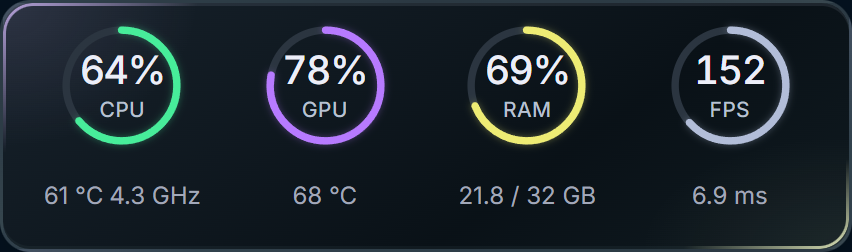
Verify stable frame delivery to avoid screen tearing and stutter.
Fixing tearing, stutter and input latency
What causes screen tearing?
Screen tearing happens when the graphics card sends a new frame while the monitor is in the middle of scanning the previous one, showing two half-frames at once.
Why does VSync cause input lag?
VSync forces the GPU to buffer completed frames and wait for the monitor's vertical blank interval (VBLANK), delaying your mouse inputs from appearing on screen.
Does Fast Sync or Enhanced Sync work?
NVIDIA Fast Sync and AMD Enhanced Sync render unconstrained frames and display only the most recent complete frame at each refresh, reducing tearing without standard VSync latency.
Frequently asked questions about VSync
Should I turn VSync on or off for Valorant and CS2?
Turn VSync OFF for competitive tactical shooters. In Valorant and CS2, minimal input latency is critical for reaction time, so running uncapped or capped slightly below your monitor refresh rate is recommended.
Does VSync lower FPS?
VSync caps your maximum frame rate to your monitor's refresh rate (such as 60 FPS, 144 FPS, or 240 FPS). It does not lower your PC's rendering power, but if your PC cannot hold the full refresh rate without triple buffering, FPS can drop sharply to half.
Is VSync needed if I have G-Sync or FreeSync?
When using G-Sync or FreeSync, enable G-Sync in your GPU driver, cap your frame rate 3 FPS below your monitor's maximum refresh rate, and keep in-game VSync off. This keeps gameplay inside the adaptive sync range with zero tearing.
How does SysCubes help monitor frame pacing?
SysCubes displays live FPS alongside derived frame budget milliseconds (1000/FPS) and CPU/GPU temperatures, allowing you to see at a glance whether slow-downs stem from frame delivery or hardware thermal limits.
Related guides and tools
Sources and technical standards
Documentation on display refresh rates and synchronization technology.