
How to Play Music or Sounds Through Your Mic in Games & Discord
Three ways to route audio clips, music or sound effects into your microphone input: two software mixer methods on Windows and one lightweight gaming soundboard overlay.
Option 1: Windows Stereo Mix (Built-in Audio Routing)
Many Windows sound cards include a hidden recording device called Stereo Mix that mirrors what your speakers play directly into an audio input.
Built into Windows, but plays all sound Routes all system audio into your mic channel, including game sounds and team voices, unless split by software.
- Press Win + R, type
mmsys.cpl, and press Enter to open the Windows Sound control panel. - Select the Recording tab, right-click an empty space, and check Show Disabled Devices.
- Right-click Stereo Mix and choose Enable.
- In Discord or your game's voice settings, set your Input Device to Stereo Mix.
Stereo Mix routes all desktop audio, so teammates will hear their own voices back as an echo unless you use headphones and app-specific audio routing.
Option 2: SysCubes Recommended

SysCubes provides an in-game volume mixer and media controller overlay with independent sliders for your game, Discord voice chat, browser and microphone, letting you balance sound levels on the fly without Alt-Tabbing.
Independent app sliders in-game Balance your music, game and voice chat levels separately so clips play cleanly without overpowering speech.
- Install SysCubes and enable the Volume Mixer and Media Controller widgets in your game overlay.
- In game, press Alt + O to view your sound controls.
- Adjust your voice chat and media playback sliders individually so your audio cues are heard clearly while your game remains at comfortable listening volume.
Per-app volume control directly inside your game
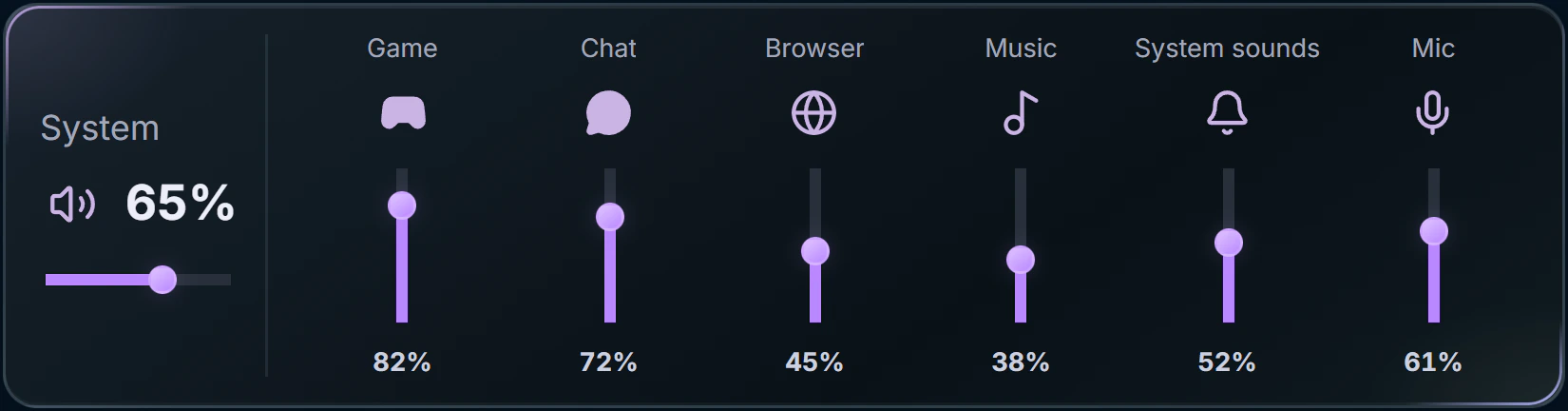
Balance game, Discord and music sliders independently without alt-tabbing.
Option 3: Virtual Audio Cable / VoiceMeeter
Virtual audio drivers create simulated sound cards in Windows that merge microphone input with specific media players.
Advanced routing, steeper learning curve Allows you to isolate music to your mic without broadcasting game audio, but requires configuring multiple virtual devices.
- Install a virtual audio driver or VoiceMeeter on your Windows PC.
- Set your media player or sound effect tool's output to the virtual cable input.
- In the virtual mixer, assign your physical microphone to Input 1 and the virtual cable to Input 2.
- In Discord or your game, select the virtual mixer output as your microphone input device.
Requires configuring sample rates identically across all virtual devices in Windows Sound settings to avoid robotic audio distortion or latency.
Echo, robotic sound or microphone cutting out? Check these first
Teammates hear an echo of themselves
If using Stereo Mix, Discord's output is being fed back into its input. Use headphones, or use SysCubes per-app volume sliders to keep voice communication isolated from media sound.
Discord Noise Suppression mutes the sounds
Discord's Krisp Noise Suppression treats sound clips as background noise and filters them out. In Discord Settings > Voice & Video, set Noise Suppression to 'Standard' or 'None' when playing sound effects.
Audio sounds distorted or robotic
Make sure all audio devices in Windows Sound control panel are set to the same sample rate (typically 24-bit, 48000 Hz) to avoid driver buffer conflicts.
Audio routing, Discord settings and volume balance
Can I play sounds through my mic without extra software?
Yes, by enabling Stereo Mix in Windows Sound settings. However, it broadcasts all computer audio to your mic, so dedicated app sliders or virtual cables are recommended for cleaner control.
Why can't my friends in Discord hear my soundboard?
Discord's automated noise suppression (Krisp) often silences music and sound clips. Disabling Krisp or switching to Standard noise suppression in Voice & Video settings usually fixes this.
How do I prevent music from being too loud in voice chat?
SysCubes in-game volume mixer provides separate sliders for each audio source so you can turn down the music player while keeping your voice and game volume intact.
Does routing music through my mic increase game latency?
No. Software audio mixing adds virtually zero CPU overhead when devices share a common sample rate like 48 kHz.
Related guides and tools
Sources and verification
Reviewed November 14, 2026. Windows Stereo Mix configuration verified on Windows 11 Build 22631+. Discord voice processing and Krisp settings follow Discord official knowledge base. SysCubes in-game volume mixer and media controls follow verified product specifications.