
Optimize Windows 11 for gaming: best settings, Game Mode & safe tweaks
Direct Answer: In Windows 11, turn ON 'Optimizations for windowed games' and 'Game Mode'. Enable Hardware-Accelerated GPU Scheduling (HAGS), set your power plan to High Performance, and avoid third-party registry tweakers that trigger anti-cheat bans. Use SysCubes for safe in-game telemetry.
Option 1: Enable Optimizations for Windowed Games
Windows 11 features a modernized presentation model that upgrades legacy DX10/DX11 windowed games to the DX12 flip model, delivering true full-screen latency inside borderless windows.
Fullscreen latency in borderless Enables Auto HDR and Variable Refresh Rate (G-Sync/FreeSync) in borderless windowed mode without any input lag penalty.
- Open Windows 11 Settings (Win + I) and navigate to System > Display > Graphics.
- Click Change default graphics settings.
- Turn ON Optimizations for windowed games and restart your PC.
Option 2: Enable Game Mode & Hardware-Accelerated GPU Scheduling
Windows Game Mode prevents background system processes and Windows updates from stealing CPU threads while a game is running in the foreground.
Background task suppression HAGS delegates frame queue scheduling directly to the GPU's memory management processor, reducing CPU scheduling overhead.
- In Windows Settings, go to Gaming > Game Mode and ensure it is switched ON.
- In Display > Graphics > Default Settings, toggle Hardware-accelerated GPU scheduling (HAGS) to ON.
- Verify your GPU driver (NVIDIA / AMD) is updated to the latest Game Ready driver release.
Option 3: Tune Power Plan & Disable Background Startup Apps
Windows Balanced power plan occasionally down-clocks CPU core frequencies during brief pauses, creating noticeable 1% low frame dips in competitive games.
Consistent CPU frequencies Setting High Performance or Ultimate Performance keeps CPU clock states locked at boost frequencies for maximum responsiveness.
- Press Win + R, type
powercfg.cpl, and select High Performance. - Open Task Manager (Ctrl + Shift + Esc) and go to the Startup Apps tab.
- Disable non-essential startup items (launchers, update helpers, printer software) to free up memory.
Option 4: SysCubes Safe Telemetry HUD (Zero Registry Hacks) Recommended Windows Utility

Many online 'optimization guides' promote dangerous registry debloater scripts that break Windows Defender and cause anti-cheat bans. SysCubes is 100% safe, certified by Overwolf, and monitors live frametimes and temperatures without editing a single system file.
100% Anti-Cheat Whitelisted Full telemetry, 1% low monitoring, and in-game audio mixing with zero registry risks or security compromises.
- Download SysCubes free for Windows 10/11 via Overwolf.
- Press Alt + O to monitor live 1% low frametimes and hardware temperatures to verify your Windows optimization gains.
- Use Alt + V to control in-game volume sessions seamlessly.
Safe optimization with real telemetry
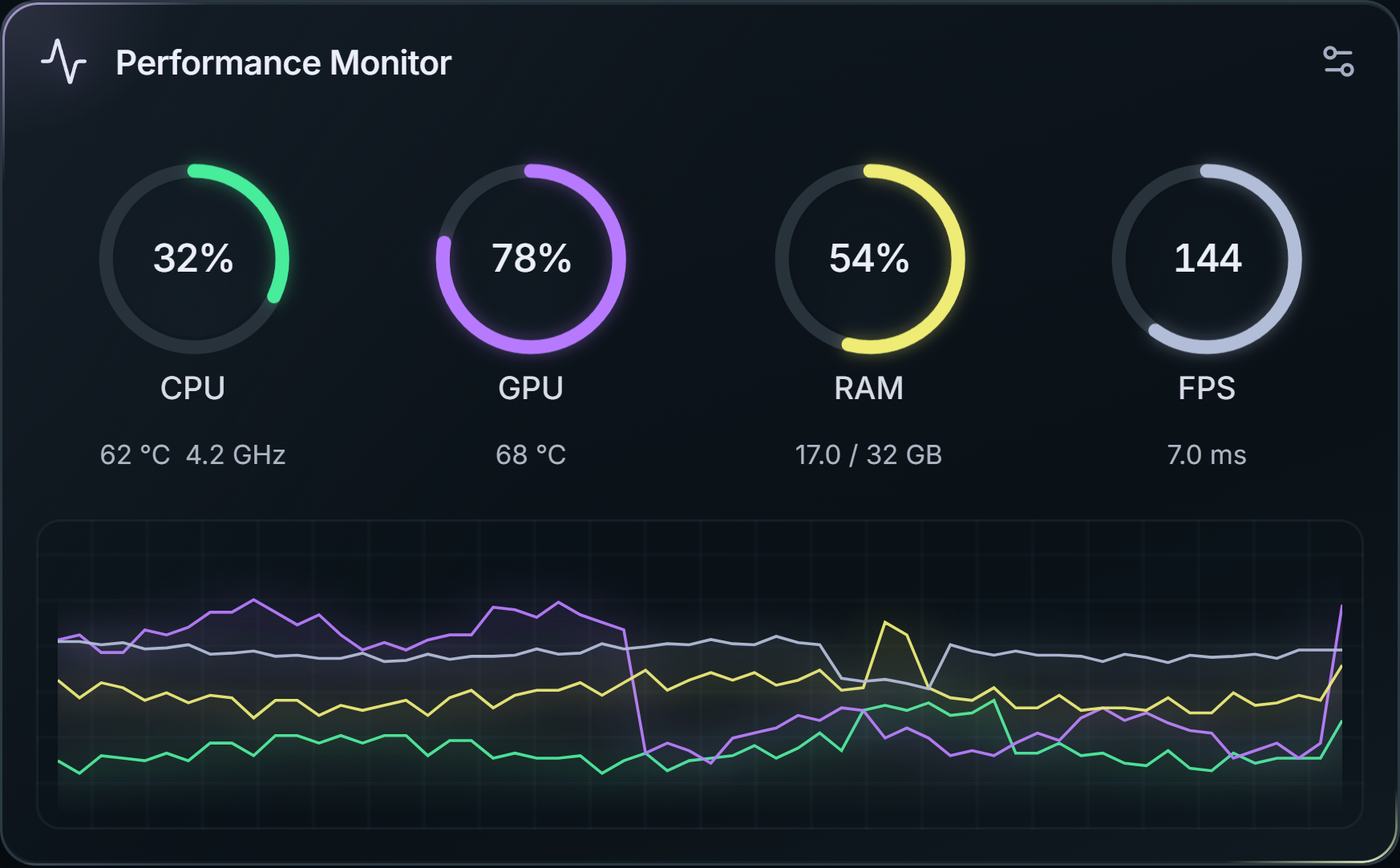
Track true frametime gains without risking anti-cheat bans or Windows corruptions.
Windows 11 optimization questions and risks
Should I disable optimizations for windowed games?
No. You should keep Optimizations for windowed games turned ON in Windows 11. It upgrades legacy DirectX borderless presentation to the modern flip model, cutting input latency to match exclusive fullscreen while maintaining instant Alt-Tab.
Are Windows 11 debloater scripts safe?
No. Aggressive PowerShell debloater scripts frequently disable core Windows services, break Microsoft Store and Xbox app authentication, and can trigger false positive bans in Vanguard and Easy Anti-Cheat.
Does Core Isolation / Memory Integrity reduce gaming FPS?
On newer CPUs (Intel 12th+ Gen and AMD Ryzen 5000+), Memory Integrity has virtually zero impact (<1%). On older systems, turning it off can yield a 3-5% boost, but compromises kernel security.
Frequently asked questions about Windows 11 gaming performance
Is Windows 11 better than Windows 10 for gaming?
Yes. Windows 11 includes native Auto HDR, DirectStorage, modern windowed game optimizations, and a thread scheduler optimized for Intel hybrid architecture (P-cores and E-cores).
Does Windows Game Mode actually improve FPS?
Yes. In modern Windows 11 updates, Game Mode prioritizes CPU and GPU resources to the active game process while preventing background Windows updates from installing during play.
How can I verify if my Windows optimizations worked?
Do not just look at average FPS. Use SysCubes to observe 1% low frametimes and frame budget milliseconds (1000/FPS). A successful optimization narrows the gap between average and 1% low FPS, producing noticeable smoothness.
Should I disable Xbox Game Bar?
You can keep Game Bar enabled for controller shortcuts, or disable its background recording if you use SysCubes lightweight instant replay buffer to save clips with lower system overhead.
Related guides and tools
Sources and Microsoft technical documentation
Official documentation on Windows 11 graphics architecture and gaming optimizations.