
Normal CPU and GPU temperatures while gaming
Typical gaming and idle readings for desktop and laptop processors and graphics cards, the manufacturer limits that matter, and how to tell a hot reading from an actual problem.
Normal gaming temperatures at a glance
Most desktop CPUs and GPUs run at roughly 60-85°C while gaming, and gaming laptops often run hotter. That is normal as long as the reading stays below your exact model's limit. Investigate when a temperature sits at its limit and clocks or FPS drop in the same game scene.
| Component | Typical while gaming | Example limit (check your model) |
|---|---|---|
| Desktop CPU (Intel Core) | 60-85°C | 100°C max operating temperature (Core i7-14700K) |
| Desktop CPU (AMD Ryzen 7000) | 60-85°C in most games; up to 95°C under heavy load | 95°C Tjmax (Ryzen 9 7950X); AMD says boosting to it is by design |
| Desktop GPU core (NVIDIA GeForce) | 60-80°C | 90°C max GPU temperature (RTX 4070 Founders Edition) |
| GPU hotspot / junction (AMD Radeon) | Higher than the core or edge reading | Up to 110°C junction is within spec during gaming (AMD, RX 5700 series) |
| Gaming laptop CPU or GPU | 70-90°C | The laptop maker's specifications and performance mode |
- At idle on the desktop, many desktop CPUs read roughly 30-50°C, depending on the cooler, room temperature and background tasks.
- A missing or 0°C reading means the sensor is unavailable to that tool. It does not mean the part is cold.
When is a high temperature actually a problem?
Heat becomes a problem when it limits performance or stability, not when it crosses a round number. Look for the temperature, the clock speed and the FPS changing together in the same repeatable game scene.
| What you see | Likely meaning | Next check |
|---|---|---|
| Near your model's limit, with lower clocks and FPS | Possible thermal throttling | Repeat the same warmed-up scene; check airflow and power settings |
| High temperature, steady clocks and FPS | Normal boost behavior for many current CPUs and GPUs | Compare with your model's limit and your own earlier readings |
| Low FPS without a temperature change | A different bottleneck | Check CPU and GPU load, memory, power mode and background apps |
| Shutdowns or crashes under load | Instability that needs support | Stop repeated stress tests and follow the system maker's support guidance |
How can you see your temperatures while you play?
You need a tool that reads the sensors, because Windows has no built-in CPU temperature display. These two options cover a quick check and a view you can keep beside the game. Every method, including free hardware tools, is compared in how to check CPU and GPU temperature.
Option 1: Windows Task Manager
Task Manager is included with Windows 11 and 10. Its Performance tab can show the temperature of a dedicated graphics card, but not the CPU.
- Press Ctrl + Shift + Esc to open Task Manager, then select Performance.
- Select your dedicated GPU. The temperature appears under its graphs, in °C.
Task Manager shows no CPU temperature, and the GPU reading needs a dedicated card with a recent graphics driver. It also sits behind your game, so you have to switch away to read it.
Option 2: SysCubes Recommended

SysCubes is a free Windows app for Overwolf. Its Performance Monitor widget shows CPU and GPU temperature beside usage, RAM and game FPS, on your desktop or a second monitor.
CPU sensor setup CPU temperature needs a one-time optional sensor setup with Windows administrator approval. Readings depend on your hardware.
- Install SysCubes and open the Performance Monitor widget. If the CPU shows a lock, select it and choose Unlock CPU readings.
- Start your game and keep the widget on your desktop or second monitor. Temperature, usage and FPS update side by side.
Temperature beside FPS
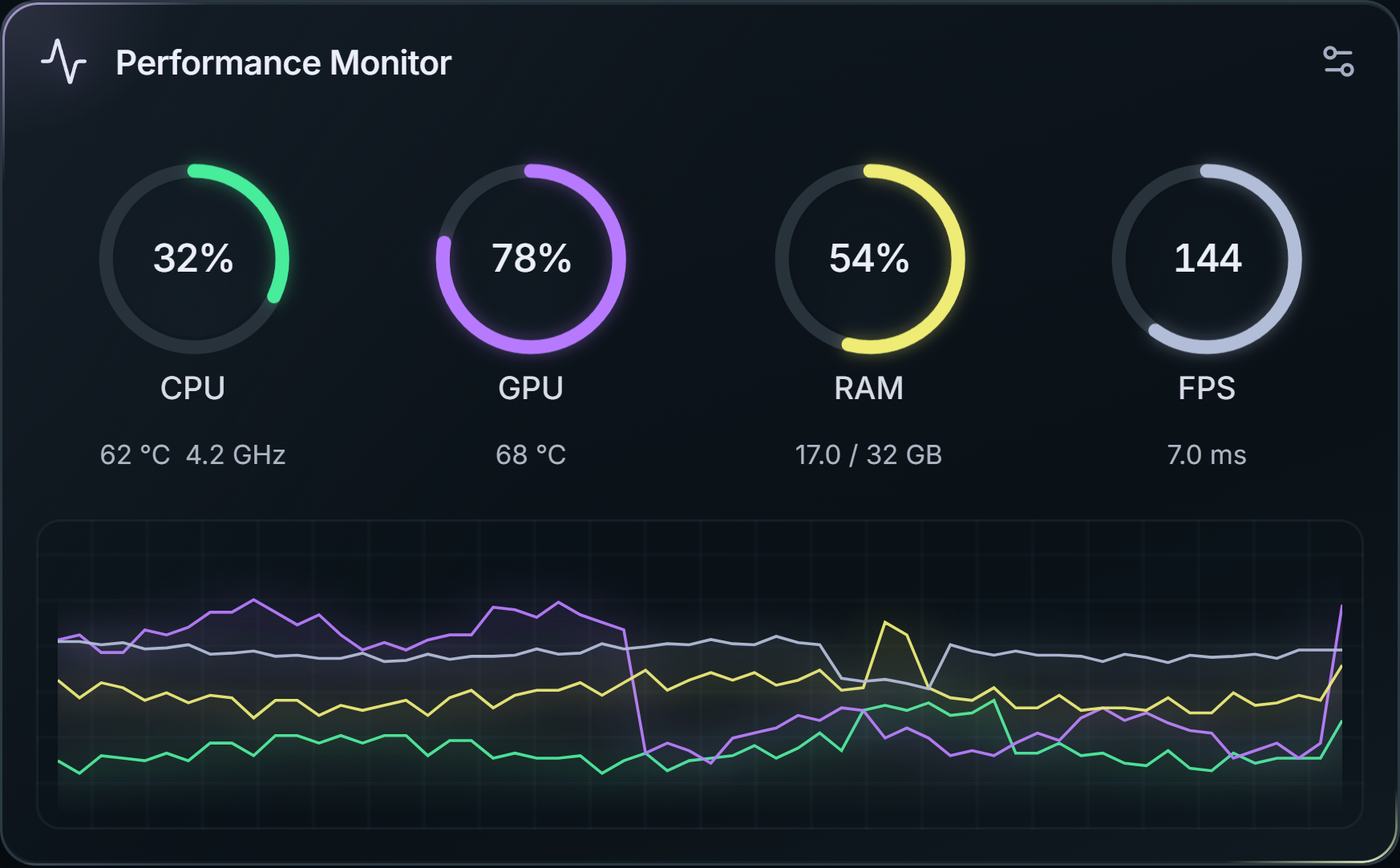
See whether a drop in FPS lines up with a rise in temperature, without switching away from the game.
What can you safely change if your PC runs hot?
Start with outside checks you can undo, change one thing at a time, and repeat the same game scene after each change. The goal is a stable game, not the smallest possible number.
- Clear the vents: keep a laptop on a hard, flat surface and a desktop's intake and exhaust unblocked.
- Try one documented fan or performance mode and note whether the game gets smoother, louder or just cooler.
- Cap the frame rate in games that run far above your monitor's refresh rate, so the CPU and GPU work less.
- For cleaning, cooler changes or thermal paste, follow your system maker's service instructions, especially on a laptop or a system under warranty.
Never disable thermal protection to hide a symptom or improve a benchmark. A cooler result with much lower FPS is a trade-off, not a fix.
Which temperature reading should you compare?
One component can report several legitimate temperatures. Write down the label before comparing it with a limit or another tool, because each label has its own meaning.
| Reading | What it measures | Compare it with |
|---|---|---|
| CPU package / core | The processor's on-die sensor as a whole (package) or per core | Your CPU model's limit, under the same game and settings |
| GPU temperature / core | The graphics card's main reported temperature | Your exact card's maximum GPU temperature |
| GPU hotspot / junction | The hottest measured point on the GPU die, so it reads higher than the core | The hotspot or junction specification, not the core limit |
| GPU memory junction | The video memory, on cards that expose it | Memory-specific guidance, kept separate from the GPU core |
| Unavailable / locked | Nothing: the tool cannot read this sensor | Fix sensor access first; do not read it as zero heat |
Two apps can disagree because they read different sensors, sample at different moments or keep different peak values. Compare them at the same time, with matching labels. A maximum remembered from a loading screen is not the temperature at the moment the game felt slow.
How to find your exact model's temperature limit
Start with the full CPU or GPU model, including whether it is a laptop part or a desktop card. A family name is not enough, because different products in one family use different limits. For a prebuilt PC or laptop, also note the system model: its cooling design and firmware affect what you see.
| Hardware | Look up | Compare with |
|---|---|---|
| Desktop CPU | The exact processor's specification page | That processor's limit for the same sensor |
| Laptop CPU or GPU | The laptop model's guidance and performance mode | The laptop's own intended behavior |
| Desktop graphics card | The GPU maker's and board maker's specifications | Core, hotspot or memory limits, each for its own sensor |
| Prebuilt system | The system maker's support pages | The approved cooling configuration |
Intel lists a 100°C maximum operating temperature for the Core i7-14700K. AMD lists a 95°C Tjmax for the Ryzen 9 7950X, and NVIDIA lists 90°C for the GeForce RTX 4070 Founders Edition while publishing different maximums for other models. None of these is a target for every chip in the family. Intel's Tcase specification is also not the same as a software reading from an on-die sensor.
How to build a temperature baseline you can repeat
- Write down the starting conditions: hardware model, sensor labels, game, resolution, graphics preset, FPS cap, power mode and charger state.
- Pick a repeatable game scene, such as a built-in benchmark, a training route or a saved game. A crowded match and an empty menu are not comparable.
- Let the game warm up, then note temperature, clocks, usage and FPS together. There is no universal warm-up time for every PC.
- Repeat the run before changing anything, so you know the ordinary variation on your PC.
Keep the note with the reading. A screenshot without its settings is hard to compare later, while a note such as same game, same route, same cap, normal fan mode, stable FPS, higher sustained reading than last month gives you something to reproduce.
Short spikes versus sustained heat
Temperatures jump during loading screens, shader compilation and bursts of CPU work, and climb slowly as a session warms the case. A short spike is ordinary boost behavior. Sustained heat that lines up with lower clocks in the same scene is the pattern worth investigating.
Check whether a tool shows the current value, an average or a remembered maximum. Fan noise adds context but does not measure heat or prove a fault.
Why gaming laptops run hotter than desktops
Laptop cooling works within a small chassis and often shares cooling and power between the CPU and GPU, so 70-90°C in games is common. Performance mode, charger use, the surface it sits on and the maker's configuration all change the result. Compare a laptop with its own baseline and documented behavior, not with a desktop.
More questions about gaming temperatures
Is 80°C or 90°C too hot for a gaming CPU?
Usually not on its own. 80°C is within the normal gaming range for most desktop CPUs, and 90°C is still below the 95-100°C limits of many current Intel and AMD desktop processors. Check your exact model's limit, the sensor label and whether clocks or FPS drop under the same load. A new, sustained rise on your own PC is worth investigating even below the limit.
Is it normal for a Ryzen 7000 CPU to reach 95°C?
Under heavy load, yes. AMD lists 95°C as the Tjmax for Ryzen 7000 desktop processors such as the Ryzen 9 7950X and has said the chips are designed to boost until they reach that temperature. During lighter gaming many systems stay lower. Investigate if it holds 95°C in a light game or if clocks and FPS fall at the same time.
What is a normal GPU temperature while gaming?
As a rule of thumb, a desktop graphics card's core temperature usually sits around 60-80°C in games. Check your exact card's maximum: NVIDIA lists 90°C for the GeForce RTX 4070 Founders Edition, and partner cards can differ. Hotspot or junction readings run higher than the core reading and have their own limit.
Is GPU hotspot the same as GPU temperature?
No. A hotspot or junction reading is the hottest measured point on the GPU die, so it runs higher than the core or edge temperature, and memory junction is separate again. AMD has said junction temperatures up to 110°C during typical gaming are within spec for its Radeon RX 5700-series cards. Compare each label with its own limit.
Does reaching a thermal limit damage the processor?
Reaching a limit means the chip is managing its temperature, usually by reducing clocks or power; it does not prove damage. Repeated shutdowns, persistent instability or performance far below what the system maker expects need further investigation. Do not disable thermal protection to hide the symptom.
Should I replace thermal paste when gaming temperatures are high?
First confirm the sensor, your model's limit, the workload and whether cooling has changed. Check outside airflow and the maker's guidance before opening anything. Follow the system's service instructions or qualified support for internal work, particularly on a laptop or a system under warranty.
Sources and verification
Reviewed November 8, 2026. Typical ranges are a rule of thumb from common desktop and laptop behavior; limits come from the manufacturer pages below.
- Intel: why processor temperature rises during gaming
- Intel: operating temperature, Tjunction and Tcase
- Intel Core i7-14700K specifications
- AMD Ryzen 9 7950X specifications
- AMD: Precision Boost 2 and boost behavior
- PCGamesN: AMD explains Ryzen 7000 temperatures
- Tom's Hardware: AMD on 110°C junction temperatures
- NVIDIA GeForce specifications by model
- AMD: current and junction temperature labels