
How to Check CPU & GPU Temperature in Windows 11 While Gaming
Read your processor and graphics card temperatures on Windows 11 or 10, including while a game is running.
Option 1: Windows Task Manager
Task Manager is included with Windows 11 and 10. Its Performance tab shows the temperature of a dedicated graphics card. It does not show CPU temperature.
- Press Ctrl + Shift + Esc to open Task Manager, then select Performance.
- Select your dedicated GPU. The temperature appears under its graphs, in °C.
Needs a dedicated graphics card with a recent driver; integrated graphics show no temperature here. You have to switch away from the game to read it.
Option 2: HWiNFO
HWiNFO is a free hardware information tool for Windows that you download from hwinfo.com. Its sensor window lists every temperature your PC exposes, including the CPU.
- Download HWiNFO from hwinfo.com and run it. Tick Sensors-only and continue to open the sensor window.
- For the processor, find CPU Package on Intel or CPU (Tctl/Tdie) on AMD. For the graphics card, find GPU Temperature.
- Leave the window open while you play, then read the Current and Maximum columns.
The sensor window stays behind your game, so you read it afterward or on a second monitor. A maximum may come from a loading screen rather than the moment the game slowed down.
Option 3: SysCubes Recommended

SysCubes is a free Windows app for Overwolf. Its Performance Monitor widget shows CPU and GPU temperature beside usage, RAM and game FPS, on your desktop or a second monitor.
CPU sensor setup CPU temperature needs a one-time optional sensor setup with Windows administrator approval. Readings depend on your hardware.
- Install SysCubes and open the Performance Monitor widget. If the CPU shows a lock, select it and choose Unlock CPU readings.
- Start your game and keep the widget on your desktop or second monitor. Temperature, usage and FPS update side by side.
CPU and GPU temperature with FPS
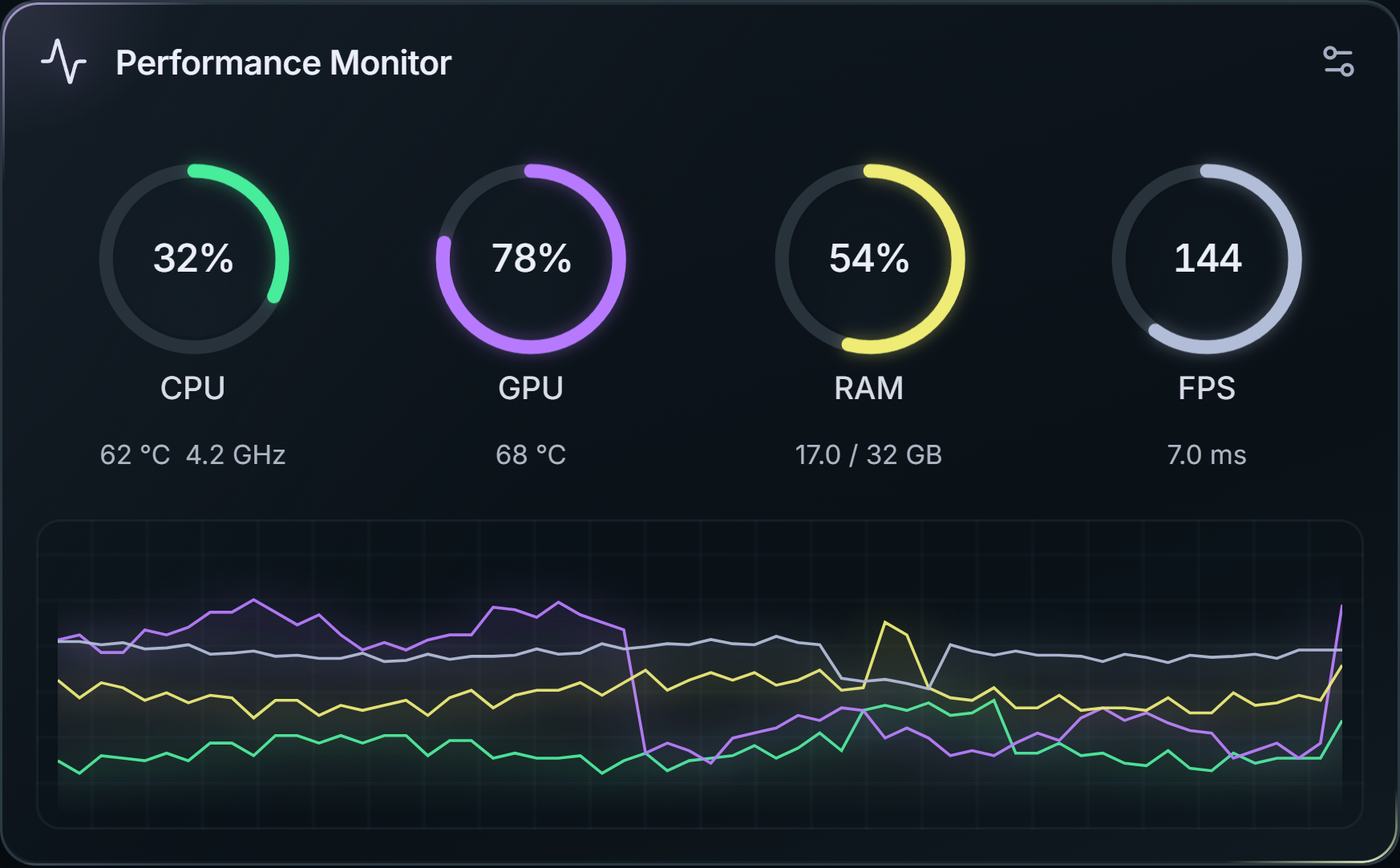
See whether a drop in FPS lines up with a rise in temperature, without switching away from the game.
Which tool shows which temperature
Use this to pick a tool for what you need to read and when you need to read it.
| Method | CPU temperature | GPU temperature | Readable during a game |
|---|---|---|---|
| Task Manager | No | Dedicated graphics cards | No, switch away from the game |
| HWiNFO | Yes | Yes | On a second monitor, or afterward |
| SysCubes | Yes, after sensor setup | Yes | On the desktop widget or a second monitor |
| BIOS or UEFI setup | Yes, before Windows starts | Usually not | No, idle readings only |
Reading missing or looks wrong? Check these first
CPU temperature shows 0 or nothing
A missing or zero reading means the tool cannot read that sensor; it does not mean the CPU is cold. In SysCubes, select the CPU lock and choose Unlock CPU readings. In HWiNFO, check that you are looking at the CPU's own sensor group.
The BIOS shows a much lower number
The BIOS or UEFI screen reads the CPU at idle before Windows loads. It cannot show the temperature under a game, so expect a higher number while playing.
Two apps show different numbers
Apps can read different sensors, sample at different times or show a remembered maximum instead of the current value. Compare the same label at the same moment.
See both temperatures while you play
The SysCubes temperature monitor keeps CPU and GPU temperature on your desktop, a second monitor or a supported game's overlay.
What number is normal?
Most desktop CPUs and GPUs run at roughly 60-85°C while gaming, below their model's limit. See normal CPU and GPU temperatures while gaming for ranges by brand and when heat is a real problem.
More questions about checking temperatures
Can Windows 11 show CPU temperature without extra software?
Not in Windows itself. Task Manager shows the temperature of a dedicated graphics card but not the CPU. The BIOS or UEFI setup screen shows a CPU reading, but only at idle before Windows starts.
Which CPU temperature should I look at?
Use the package reading: CPU Package on Intel processors or CPU (Tctl/Tdie) on AMD Ryzen processors. Individual core readings vary from moment to moment and are less useful for a quick check.
Is HWiNFO free?
Yes, for personal use. A paid Pro version adds features for commercial and advanced use.
How can I watch my temperature while playing?
Keep a sensor window or widget on a second monitor, or use a tool that shows temperature next to the game. Task Manager and most sensor windows sit behind a full-screen game, so you have to switch away to read them.
Sources and verification
Reviewed November 8, 2026. Task Manager and HWiNFO steps follow current Windows and HWiNFO behavior; SysCubes sensor setup follows product documentation.