
How to Test Internet Speed for Gaming: Ping, Jitter & Bufferbloat
Three ways to test whether gaming lag comes from latency spikes, jitter or bufferbloat: two standard network tests and one dedicated Windows gaming speed test widget.
Option 1: Windows Command Prompt (Continuous Ping Test)
Windows includes the ping utility, which lets you send packets to a gaming DNS or game server to check raw latency stability and packet loss over time.
Built into all Windows PCs Requires no downloads, but only tests idle latency rather than latency under full download/upload load.
- Press Win + R, type
cmd, and press Enter to open Command Prompt. - Type
ping -n 30 8.8.8.8and press Enter to send 30 test packets. - Check Lost packets (must be 0%) and the difference between Minimum and Maximum time (your jitter).
A standard ping test does not measure bandwidth (Mbps) or test for bufferbloat when other devices on your network stream or download simultaneously.
Option 2: SysCubes Recommended

SysCubes includes a dedicated Gamer Speed Test widget on your desktop or game overlay that measures ping, jitter, probe loss, p99 latency and bufferbloat in one click.
Gamer-specific metrics in one widget Provides an A-to-F bufferbloat grade and live latency graphs without opening heavy browser speed test sites.
- Install SysCubes and add the Gamer Speed Test widget to your dashboard or overlay.
- Click Run Test between matches or when you suspect network lag.
- Read your download and upload speeds alongside gamer-critical ratings: round-trip ping, jitter, probe loss, and your bufferbloat grade.
Complete gaming network diagnostics in one widget
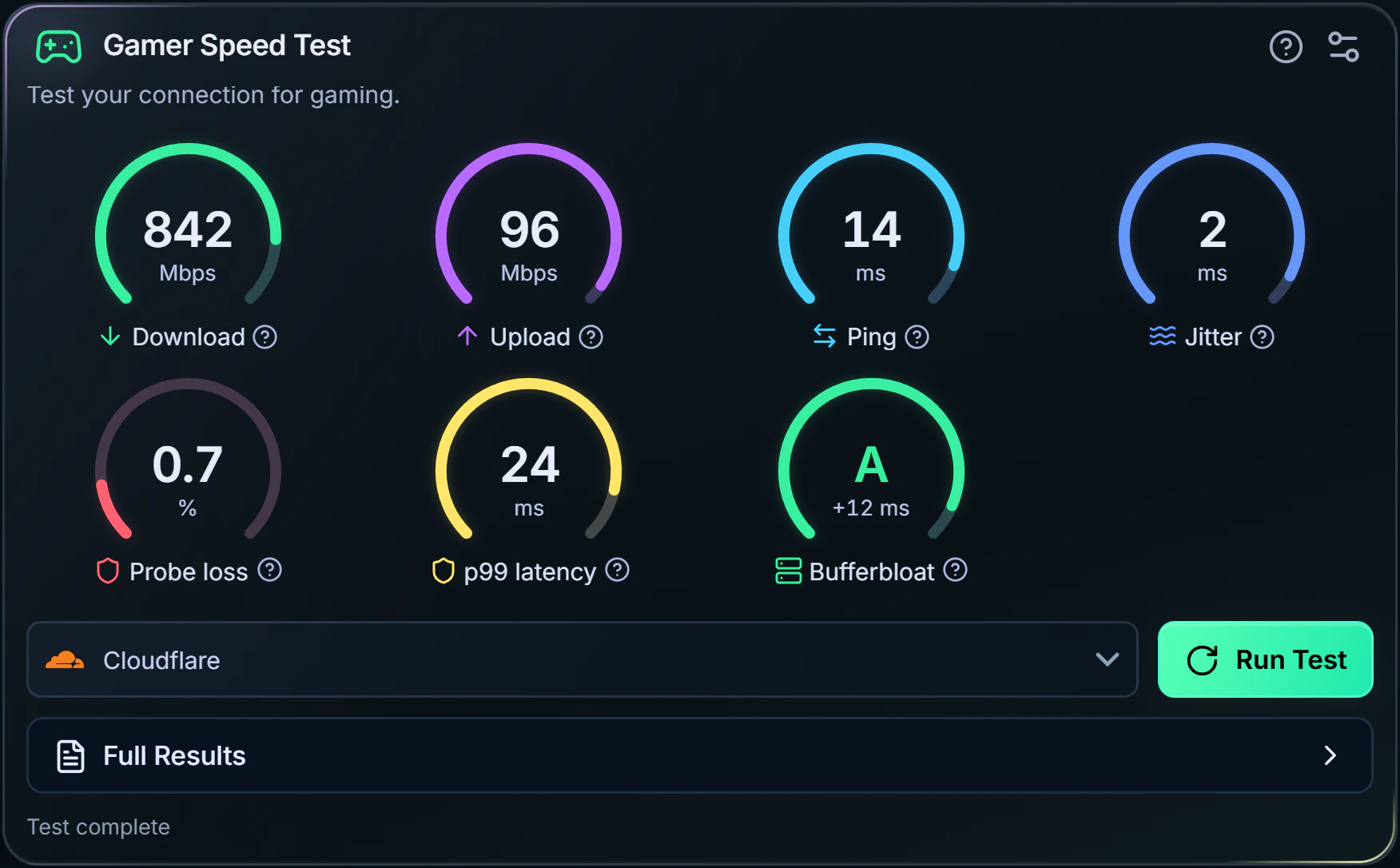
Measures ping, jitter, packet loss and bufferbloat under load.
Option 3: Browser Bufferbloat Benchmark
Specialized browser-based network benchmarks evaluate how much extra latency your home router adds when handling heavy network traffic.
Detailed router buffer analysis Runs in any web browser to show if your router queues packets during uploads, creating in-game lag spikes.
- Open a web browser and navigate to a specialized bufferbloat testing service.
- Click Start and wait for the tool to test idle ping, download active ping, and upload active ping.
- Examine the latency increase under load. A grade of A or A+ means your router prioritizes traffic well; a grade of C or lower indicates bufferbloat causing lag spikes.
Running a browser-based speed test during gameplay can consume CPU and network bandwidth, briefly causing the very lag you are testing.
High ping or sudden lag spikes? Check these first
High jitter or packet loss on Wi-Fi
Wi-Fi signals can suffer from 2.4 GHz / 5 GHz channel interference and wall reflections. Switching to an Ethernet cable directly to your router is the most reliable fix for packet loss.
Bufferbloat during uploads or streaming
When Discord or game uploads saturate your upstream bandwidth, cheap router buffers hold onto gaming packets. Enabling Smart Queue Management (SQM) or QoS in your router settings resolves this.
Background downloads eating bandwidth
Steam, Windows Update or game launchers may download patches in the background. Open SysCubes Process Monitor or Windows Task Manager to pause background downloads before entering a competitive match.
Ping vs bandwidth, jitter explained and bufferbloat grades
What is the difference between ping and bandwidth?
Bandwidth (Mbps) is how much data your connection moves per second. Ping (ms) is how fast a single packet travels to the game server and back. For competitive gaming, low and stable ping is far more important than high download speed.
What is good jitter for gaming?
Jitter measures the variance between ping packets. Jitter under 3 ms is excellent; between 3 ms and 10 ms is acceptable. Jitter above 15 ms results in noticeable rubberbanding and hit registration delays.
What is bufferbloat in gaming?
Bufferbloat occurs when a router holds excessive network packets in large buffers instead of transmitting them immediately. When family members stream 4K video or upload files, your in-game ping can spike from 20 ms to 200 ms.
Does SysCubes test internet speed in-game?
Yes. SysCubes includes both a desktop speed test widget and an optional in-game overlay widget so you can check latency and stability between rounds without Alt-Tabbing.
Related guides and tools
Sources and verification
Reviewed November 14, 2026. Command prompt ping metrics verified on standard Windows TCP/IP networking stack. Bufferbloat testing protocols follow IETF RFC 8290 and Waveform standards. SysCubes Gamer Speed Test metrics and widget specifications use verified product documentation.