
How to fix ping spikes in online games: diagnose network jitter & lag
Direct Answer: Ping spikes are caused by Wi-Fi packet drops, router bufferbloat, or background downloads. Switch to an Ethernet cable, enable SQM (Smart Queue Management) on your router, and use SysCubes Gamer Speed Test to measure real-time jitter and packet loss.
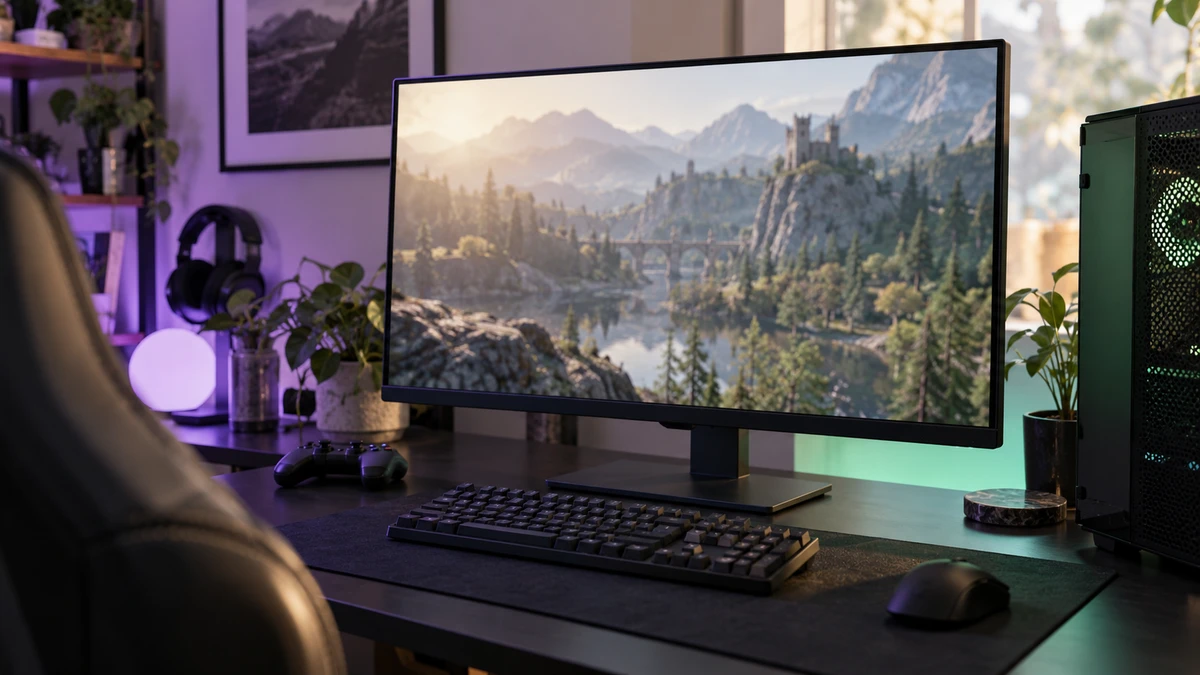
Option 1: Switch to Ethernet (Eliminate Wi-Fi Packet Loss)
Wi-Fi is susceptible to radio frequency interference, wall obstacles, and channel congestion, which cause random 100ms-300ms ping spikes even on fast fiber internet.
Physical stability A physical Cat6 Ethernet cable eliminates radio packet retransmissions entirely, delivering rock-solid 1ms local network response.
- Connect an Ethernet cable directly from your PC to a LAN port on your primary router.
- If direct routing is impossible, consider a high-quality MoCA adapter (coaxial cable network) rather than powerline or Wi-Fi repeaters.
- In Windows Network Connections, disable the Wi-Fi adapter to prevent Windows from intermittently scanning for nearby SSIDs.
Option 2: Eliminate Bufferbloat with Router SQM
Bufferbloat occurs when someone on your local network streams video or downloads files, filling up the router's buffer queues and delaying gaming packets.
Traffic prioritization Smart Queue Management (SQM like CAKE or fq_codel) dynamically prioritizes small gaming packets over large bulk downloads.
- Log into your router's administration portal (usually
192.168.1.1). - Locate QoS (Quality of Service) or Smart Queue Management (SQM) in the advanced settings.
- Set upload and download bandwidth limits to 90% of your tested maximum speed to prevent buffer congestion.
Option 3: Limit Background Cloud & Windows Updates
Hidden background uploads from OneDrive, Discord screen streaming, or Windows Delivery Optimization can saturate upstream bandwidth and spike ping.
Bandwidth reclamation Preventing automatic updates during gameplay preserves 100% of your upstream channel for game packets.
- Open Windows Settings, go to Windows Update > Advanced Options > Delivery Optimization, and disable peer-to-peer sharing.
- Pause background sync on OneDrive, Google Drive, and Dropbox while gaming.
- In game launchers (Steam, Epic Games), check Pause downloads while playing.
Option 4: SysCubes Gamer Speed Test & Telemetry Recommended Diagnostic Tool

SysCubes includes a dedicated Gamer Speed Test widget that diagnoses ping, jitter (variance), and packet loss directly from your desktop without opening resource-heavy browsers.
Native gaming telemetry Test your connection directly against low-latency gaming server routes without recurring monthly subscription fees like ExitLag.
- Download SysCubes free for Windows via Overwolf.
- Open the Gamer Speed Test widget to run a real-time jitter and packet loss analysis.
- Review your jitter milliseconds: anything under 3ms indicates a competitive, tournament-ready network connection.
Accurate jitter & latency telemetry
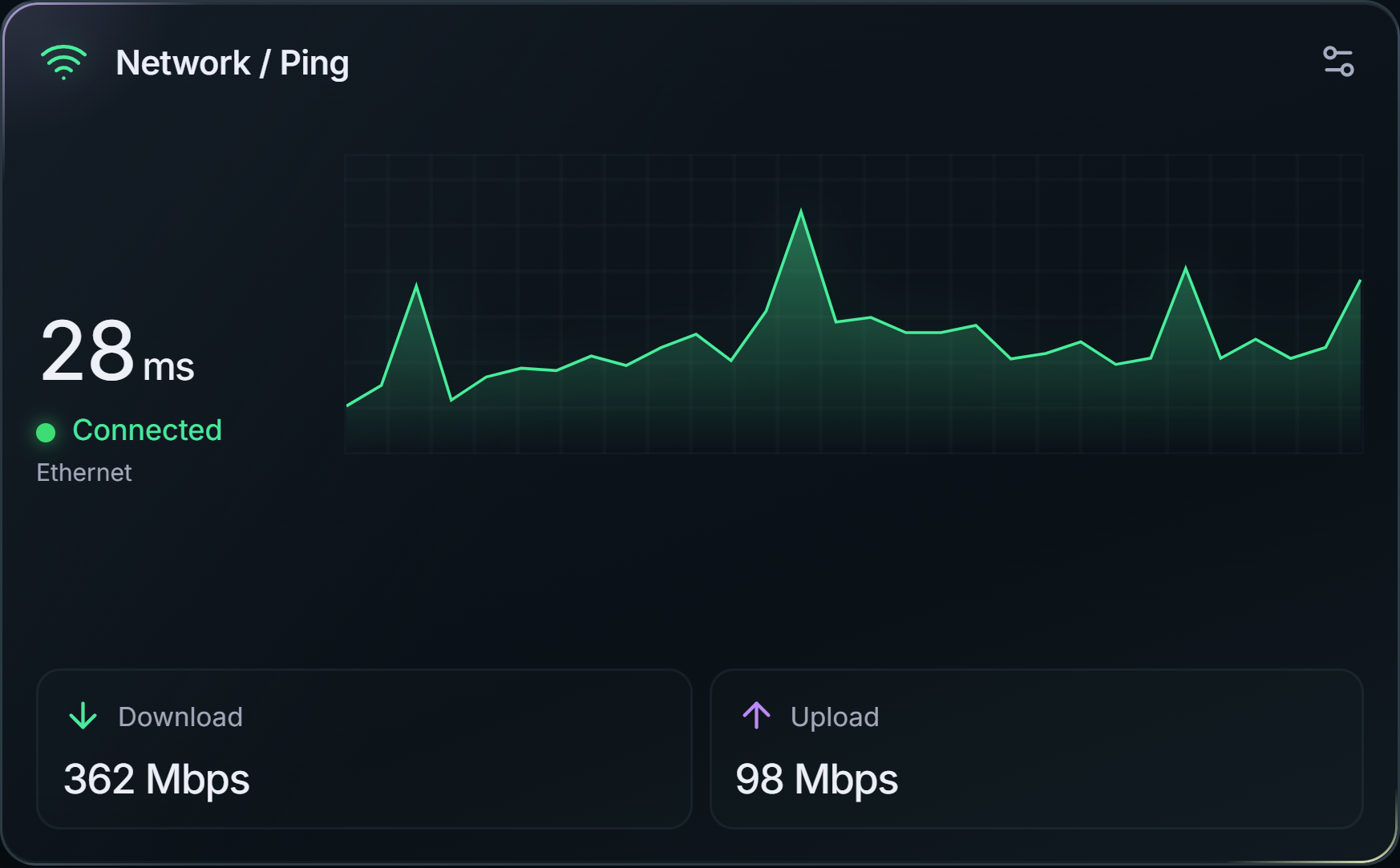
Diagnose network jitter and packet loss directly on your Windows desktop.
Understanding ping spikes and network jitter
What is network jitter?
Jitter is the variance in latency between consecutive packets. If packet 1 arrives in 20ms and packet 2 arrives in 80ms, the high jitter causes rubber-banding and missed shots.
Why do ping spikes happen on 5GHz Wi-Fi?
5GHz Wi-Fi offers high bandwidth but struggles through solid walls. Additionally, Windows background Wi-Fi scanning intermittently interrupts gaming packets to search for other networks.
Does a gaming VPN like ExitLag fix ping spikes?
VPNs only help if your ISP's routing to a specific game server is broken. If your ping spikes originate from your home router, Wi-Fi, or bufferbloat, a paid VPN will not fix the issue.
Frequently asked questions about fixing ping spikes
What is considered a good ping for competitive gaming?
Under 30ms is considered excellent for competitive shooters (Valorant, CS2). 30ms-60ms is good and fully playable. A stable 50ms ping with 1ms jitter is much better than a 20ms ping that frequently spikes to 120ms.
How do I stop Windows from scanning for Wi-Fi in the background?
You can use tools like WLAN Optimizer to disable background scanning (autoconfig) while gaming, or ideally switch to a physical Ethernet connection.
How does SysCubes test my gaming network?
SysCubes Gamer Speed Test sends rapid sequential ICMP and UDP probes to measure average ping, maximum spike latency, packet loss percentage, and jitter milliseconds without browser overhead.
Can a bad DNS cause ping spikes in games?
DNS only translates server names into IP addresses before you connect. Once a match starts, your PC talks directly to the game server IP, so changing DNS will not reduce in-game ping spikes.
Related guides and tools
Sources and network engineering standards
Documentation on bufferbloat, packet loss mitigation, and network quality.